Connecting to Holophonix
When the app starts, the Connection screen is where you link it to your Holophonix. You pick a mode, set the connection details, and connect.
Choose a mode
- Standalone — the app connects directly to the Holophonix. Use this for a single operator on one device.
- Server — the app connects to the Holophonix and hosts a session for other devices. Use this when several devices control the same show.
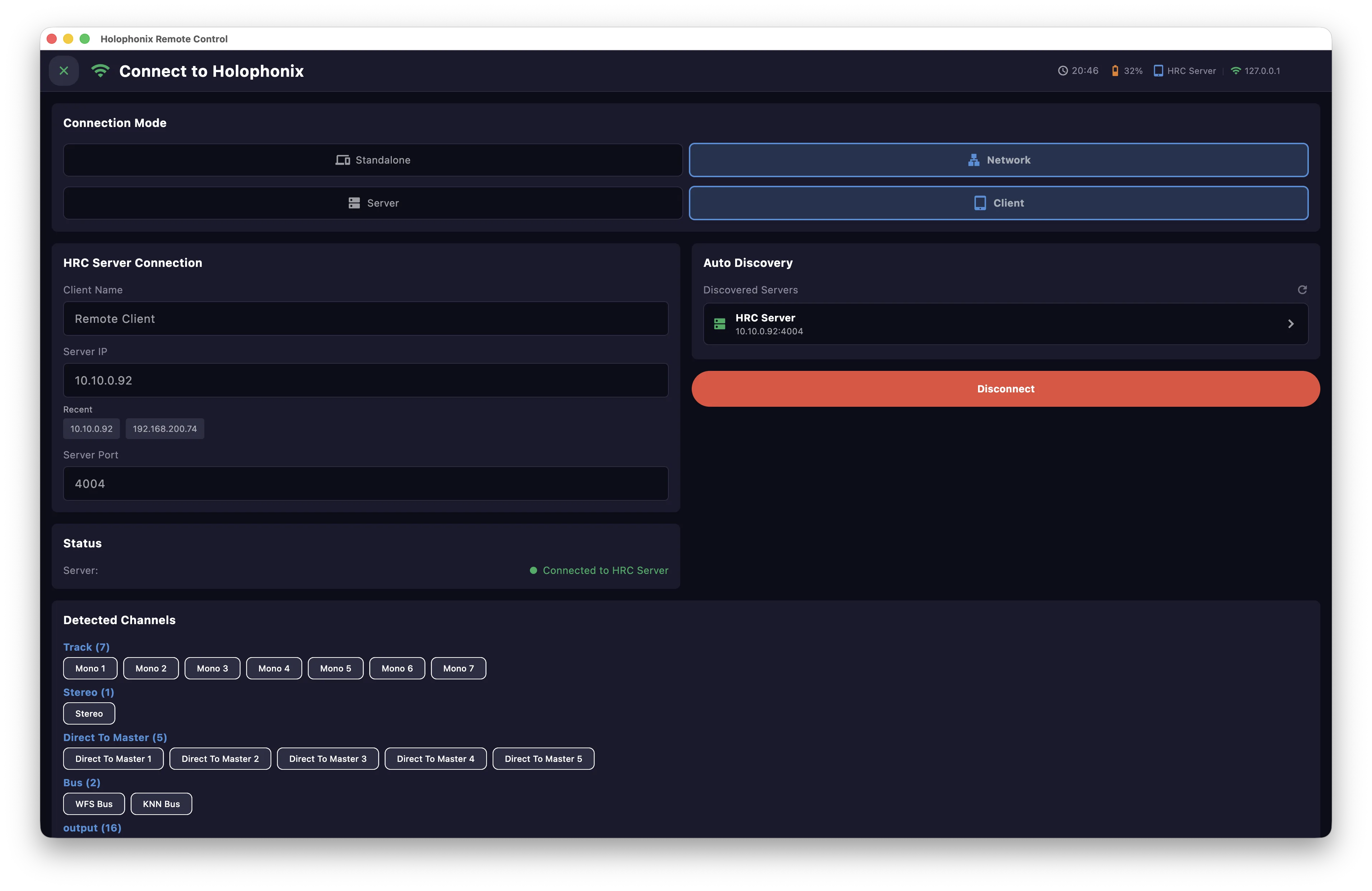
- Client — the app follows a session hosted by another instance running in Server mode. It does not connect to the Holophonix directly.
Connect to the Holophonix
In Standalone (or Server) mode:
- Select the network interface to connect through.
- Enter the Holophonix IP address — or pick one from the recent addresses below the field.
- Connect.
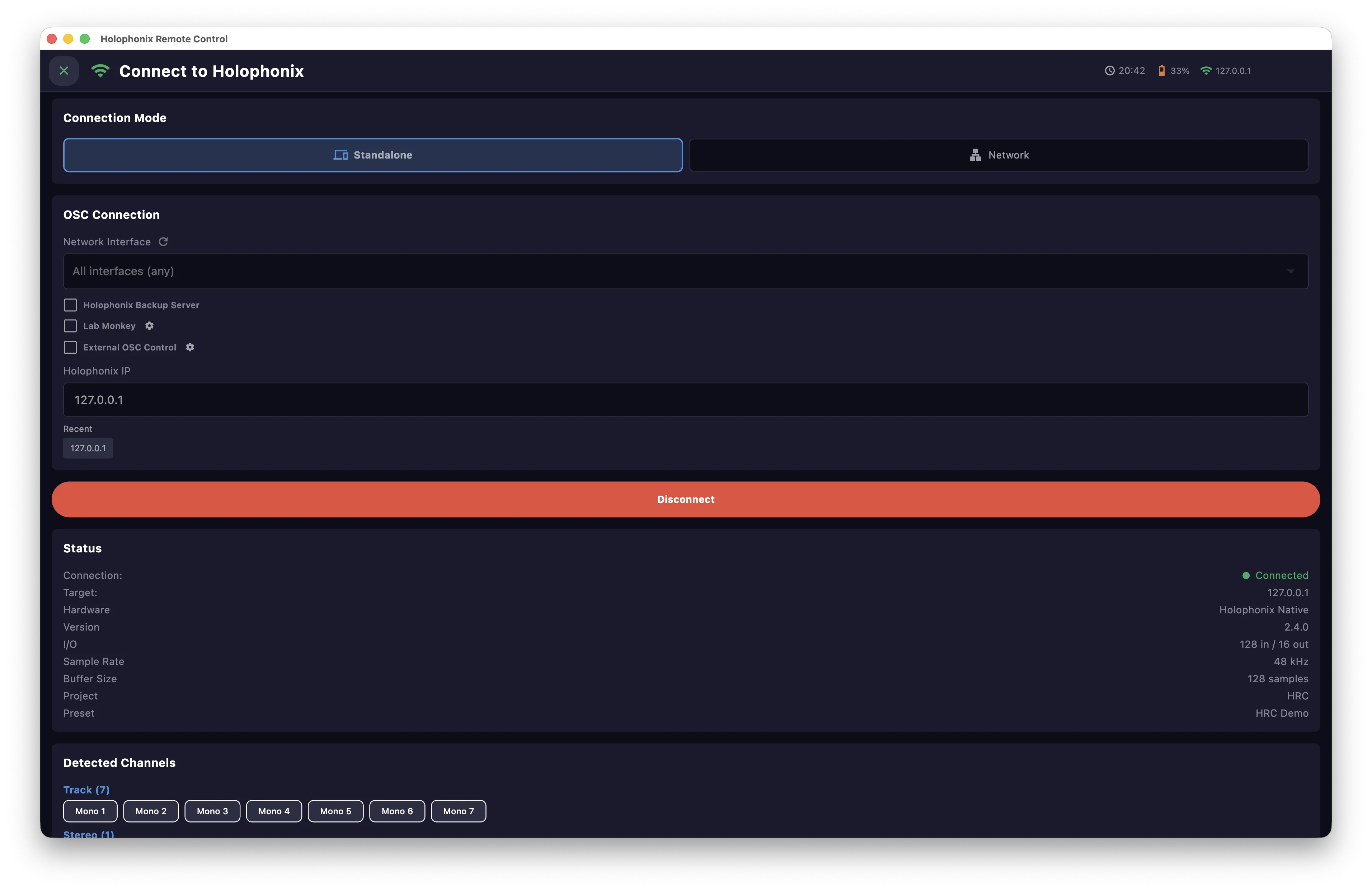
When the link is up, the Status panel shows the Holophonix's state and Detected Channels lists every channel found on the processor.
Connect as a client
In Client mode, reach an HRC Server in one of two ways:
- Enter the server's IP and port, or
- pick a server from Auto Discovery.
If the server has a password, you'll be asked for it.
Backup & failover
You can set a backup Holophonix. If the primary link drops, the app fails over to the backup automatically — and switches back when the primary returns — so a show keeps running through a processor outage.
For the full detail of every field and option, see the Connection reference.