Cues
Use the Cues window to store and recall complete states of the remote during a show. A cue is a snapshot of the whole remote — channel positions, the full mixer, linked actions and metadata. Build an ordered list of cues, then fire them one after another with GO as the show runs. Every recall respects your current Recall Safe settings.
Where cues are stored
Cues are saved in the project's cue file — cues.json by default, shown next to
the window title. Any change to the list is written automatically; there is no
separate save-list step.
The cue list
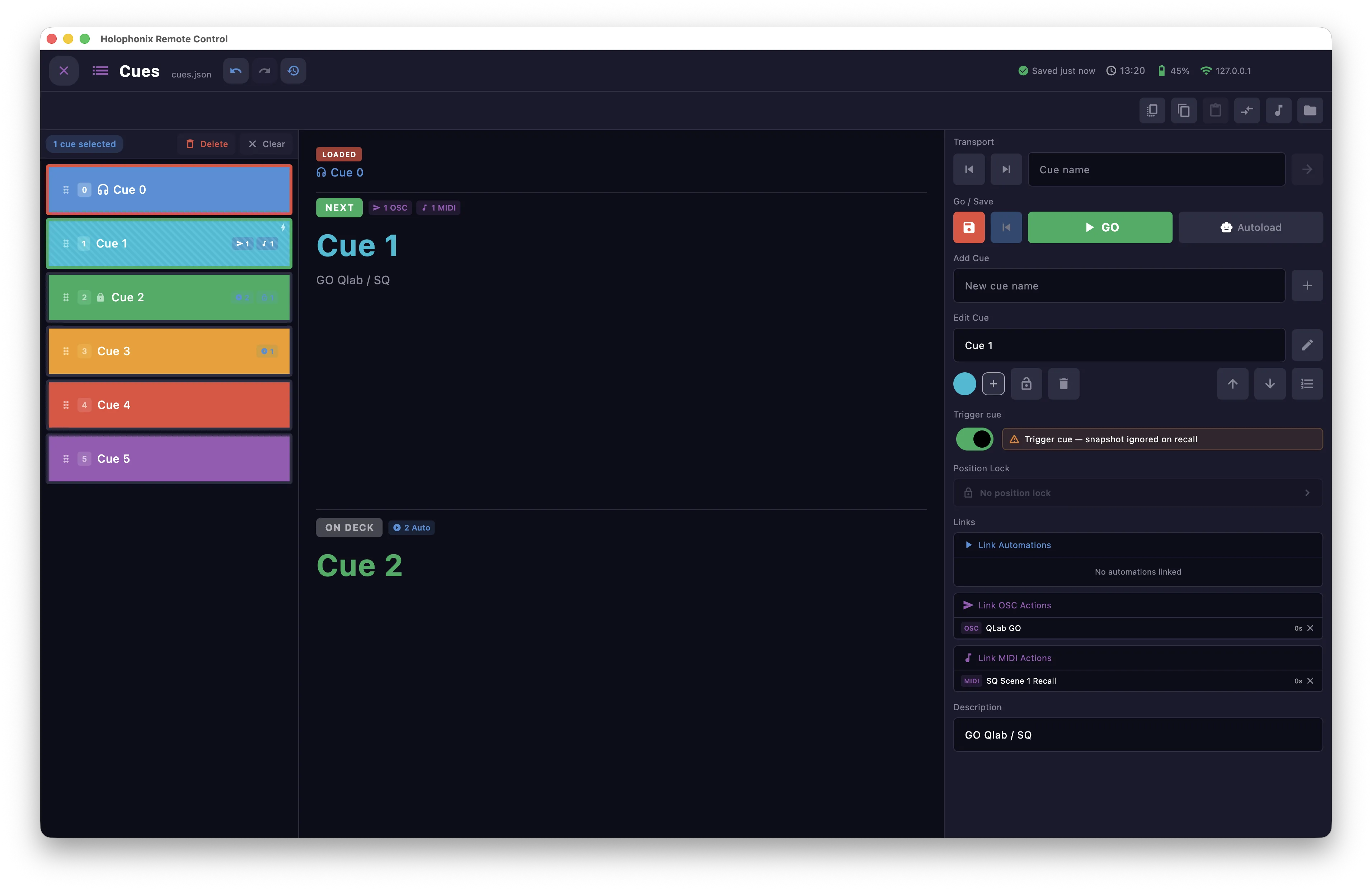
The list on the left holds every stored cue in playback order. Each row is tinted with the cue's own color and shows its chosen icon (a visual tag of your choice), its name, a lock when protected, and small badges counting its linked actions (OSC, MIDI and automations).
Two outlines tell you a cue's role:
- A green outline marks the next cue — the one GO will load next.
- A red outline marks the loaded cue, currently applied to the processor.
Select several cues at once to move or delete them together. The header shows how many are selected, with Delete and Clear. Drag the handle on the left of a cue to move it in the list.
Loaded, Next and On Deck
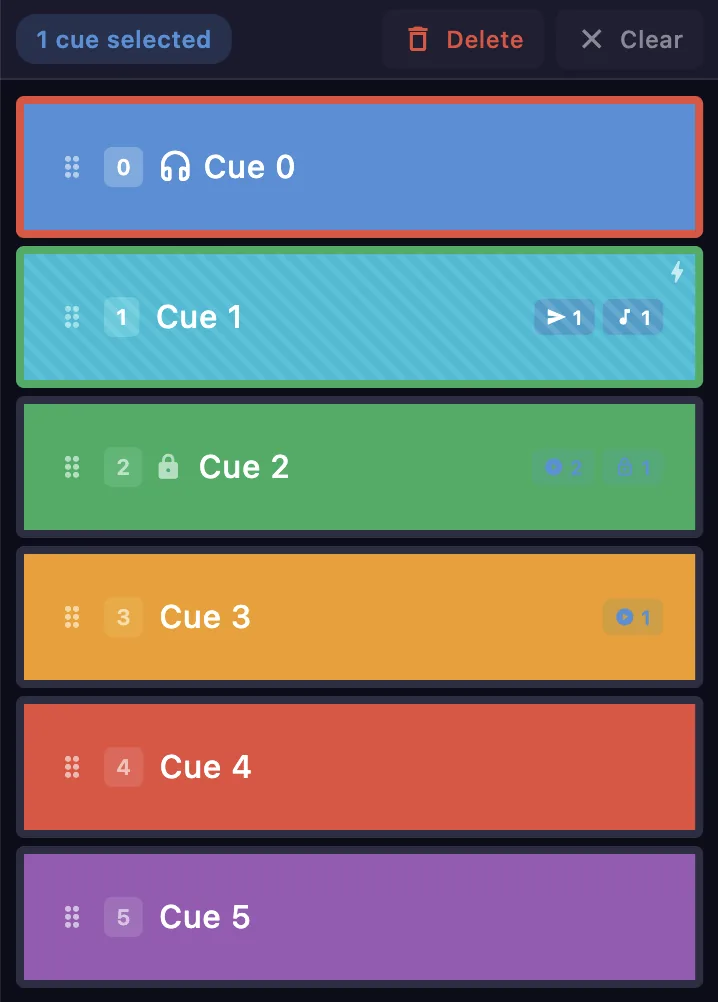
The center of the window shows where you are in the show:
- LOADED — the cue currently applied to the processor.
- NEXT — the cue that GO will fire next, with badges for its linked actions.
- ON DECK — the cue that follows, so you can see what is coming.
Cue content
A cue captures the whole state of the remote, grouped as follows:
| Group | Contents |
|---|---|
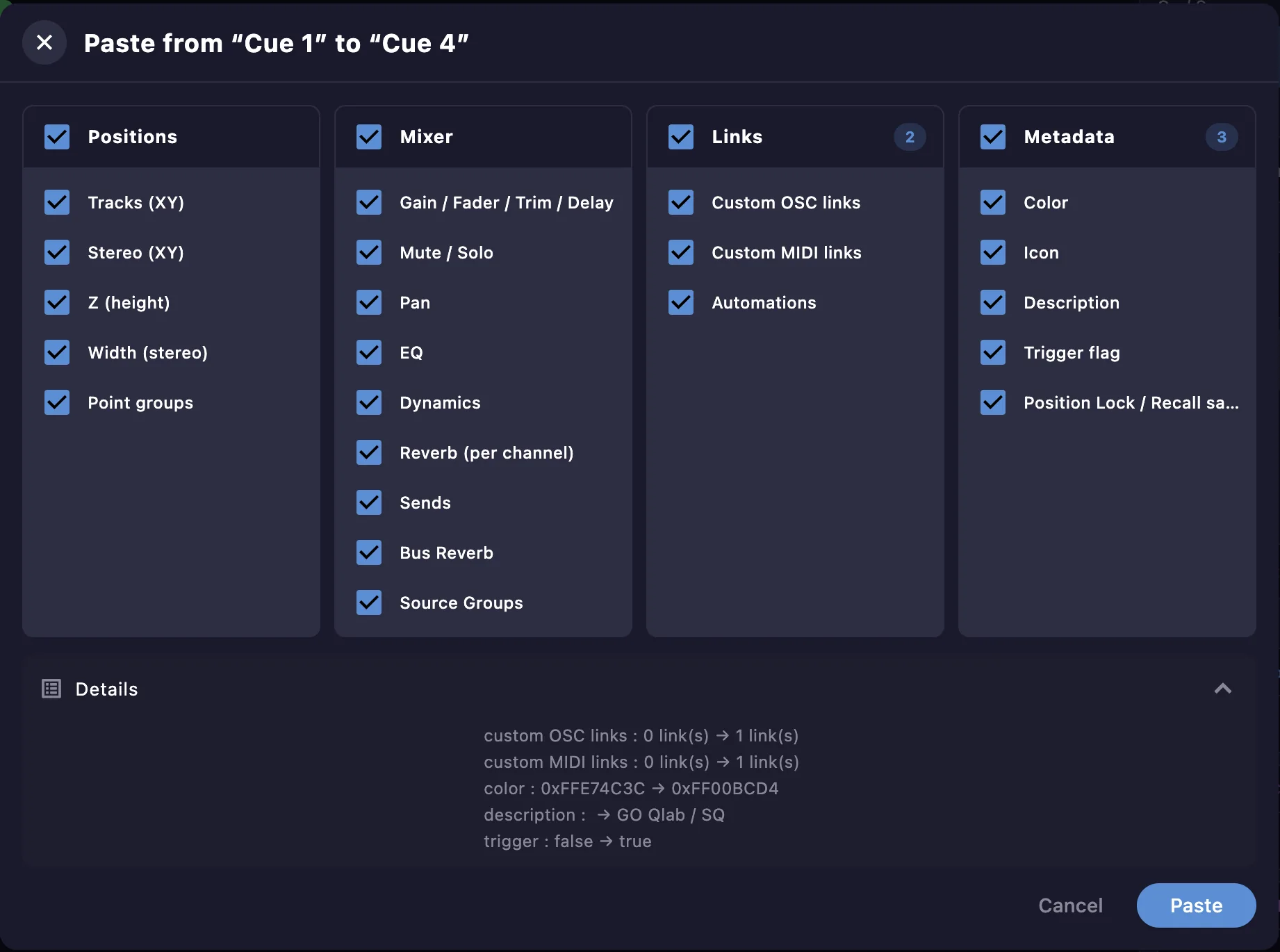
| Positions | Tracks (XY), Stereo (XY), Z (height), Width (stereo) |
| Mixer | Gain / Fader / Trim / Delay, Mute / Solo, Pan, EQ, Dynamics, Reverb (per channel), Sends, Bus Reverb |
| Links | Custom OSC links, custom MIDI links, automations |
| Metadata | Color, icon, description, trigger flag, position lock |
What actually gets applied on recall depends on your Recall Safe settings and the cue's own position lock.
Transport
Use the transport controls to step to the previous or next cue, or type a cue name to jump straight to it.

Save, GO and Autoload
Use Save to store the current state of the remote into the selected cue. Press the green GO button to recall the selected cue onto the processor. While a transition between two cues is running, use the button beside Save to return to the source cue's state.
Turn on Autoload for sequential playback: each GO recalls the selected cue and then advances the selection to the next one, so pressing GO repeatedly plays the list in order.

Adding a cue
Enter a name in Add Cue and press + to append a new cue. If you leave the name empty, the cue is created with an automatic name.

Editing a cue
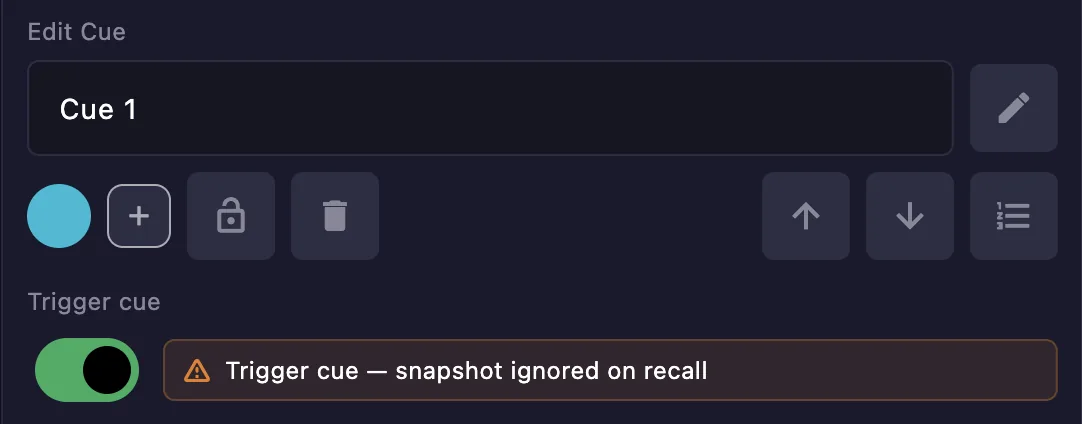
In Edit Cue, rename the selected cue, set its color and icon, toggle its lock, or delete it.
Deleting a cue is permanent
A removed cue cannot be recovered. Lock the cues you rely on to prevent accidental deletion or overwriting during a show.
Reordering
Use the up and down arrows to move the selected cue one step in the list. Use the numbered-list button to set its exact position number instead. You can also drag a cue by its handle directly in the list.
Trigger cue
Turn on Trigger cue to make a cue fire its linked actions without applying a snapshot. Use it for a cue whose only job is to trigger OSC, MIDI or automations — not to change the processor state.

Snapshot ignored on recall
When a cue is a trigger cue, its stored snapshot is ignored on recall. Only its linked actions run.
Position lock
Use Position Lock to protect channel positions for this cue, so recalling it does not move the locked channels. This is a per-cue complement to the global Recall Safe settings.

Links
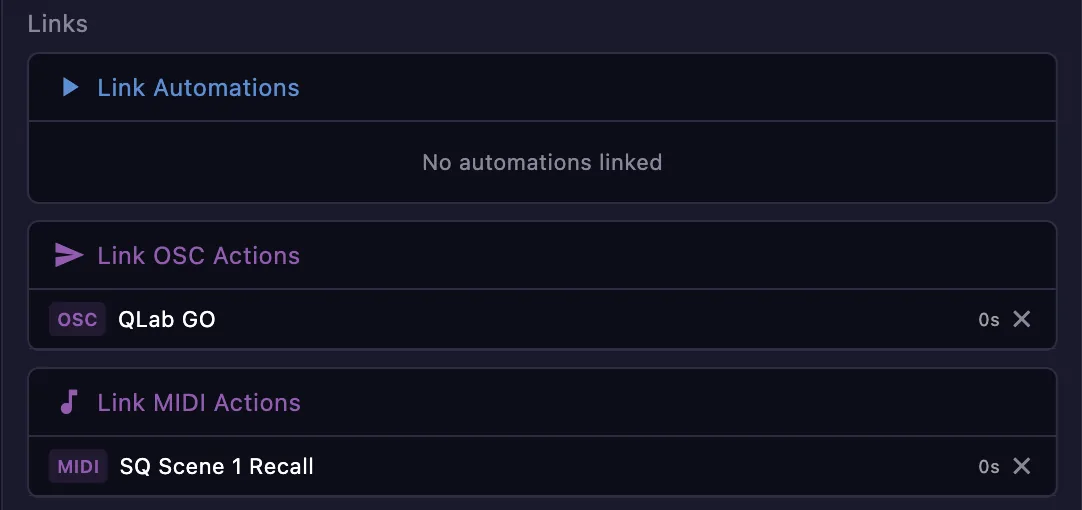
A cue can trigger actions when you fire it. Use the Links section to attach them:
- Link Automations — start automations (trajectories, fades…).
- Link OSC Actions — send custom OSC actions.
- Link MIDI Actions — send custom MIDI actions.
Each linked action has its own delay, so a single GO can choreograph several events along a timeline. Use the ✕ next to a link to remove it.
Description
Add free-text notes to the selected cue in the Description field — your reminder of what the cue does.

Compare cues
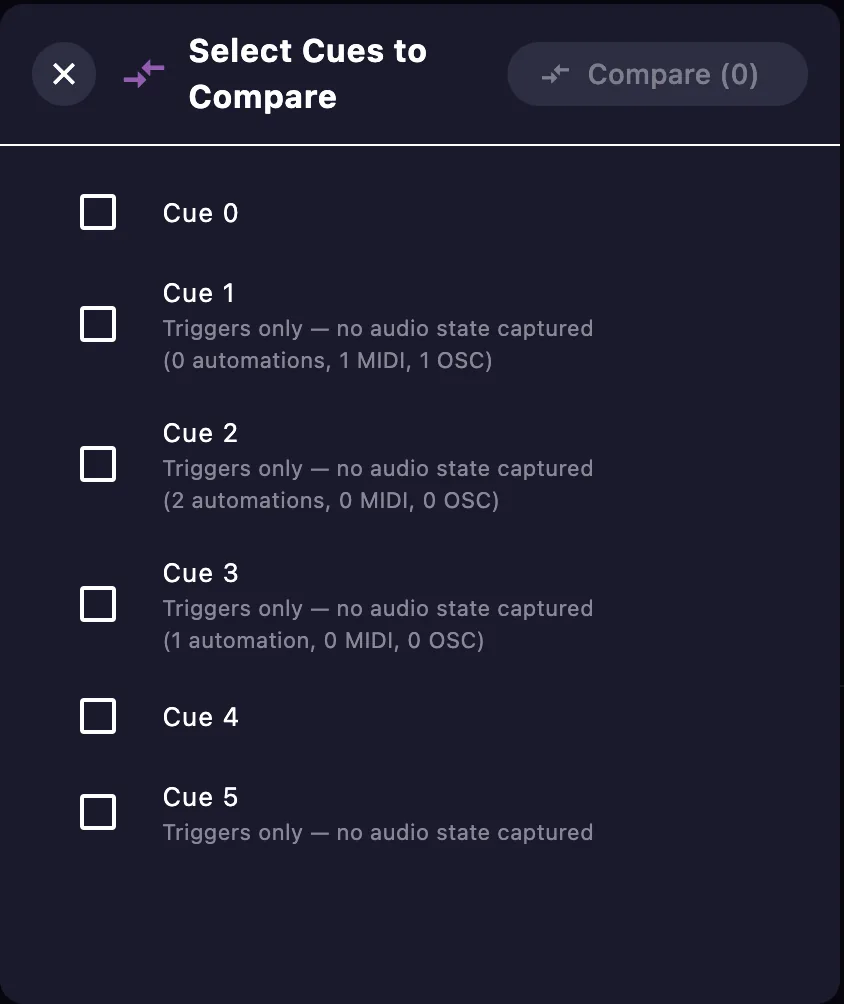
Use Compare to select two or more cues and see how their stored contents differ — including which cues are triggers only with no captured audio state.
Copy, paste and duplicate
Use Copy / Paste to transfer chosen parameters of one cue to another. Pick exactly which parameters to copy — down to individual items within positions, mixer, links and metadata — and preview the changes before applying them. Duplicate creates a full copy of a cue.
Shared tools
Like other windows, this one includes cue history, a manage file control for the
project's cues.json, and MIDI map mode to map the cue controls to a MIDI controller.