Mixer
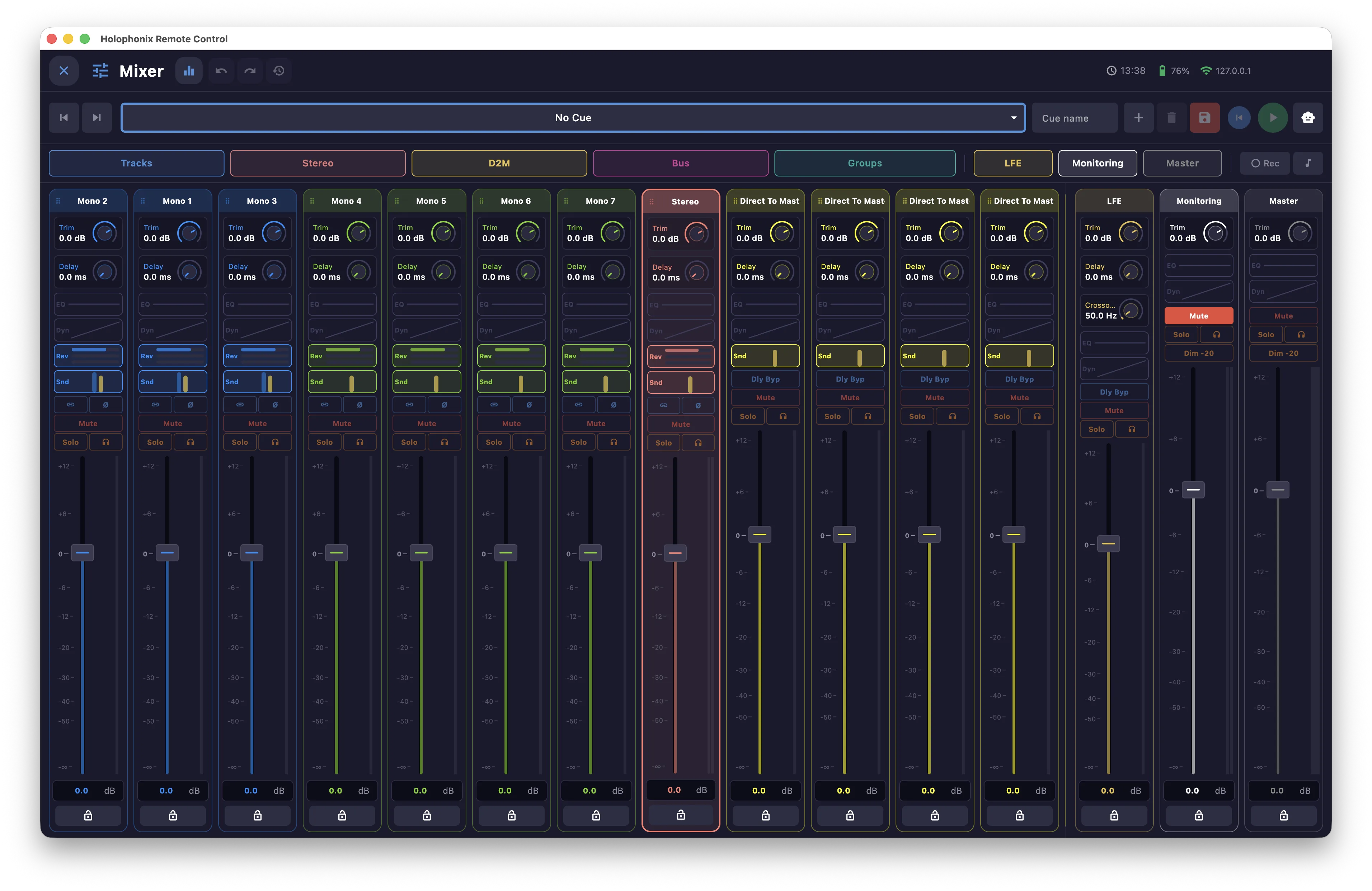
Use the Mixer window for full control of the Holophonix mixer. It covers seven channel types — Tracks, Stereo, Direct To Master, Bus, LFE, Monitoring and Master — plus source Groups, each with its own strip of faders, knobs and processing.
Channel display selector
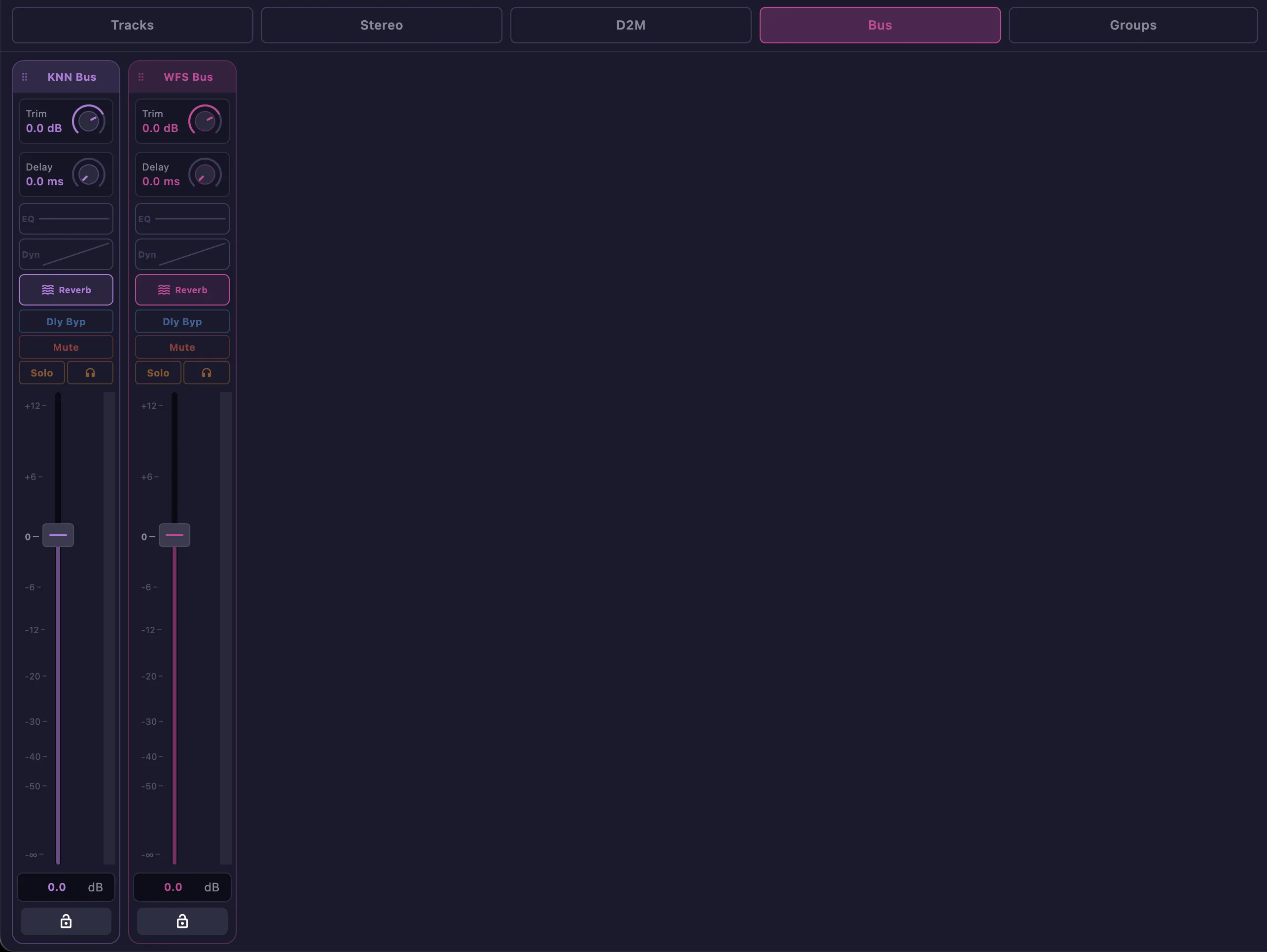
Use the tabs above the strips to show or hide each channel type, so you only see the channels you are working with.
Channel strip

Each channel is controlled from its own strip. On a Mono track, from top to bottom:
- Trim and Delay
- Equalizer, Dynamics, Reverb and Sends — open the detailed editors below
- Link To Distance and Phase
- Mute, Solo and monitor
- the fader with its level meter
- Lock
Other channel types add their own controls — Delay Bypass, Crossover and DIM -20dB — and every channel can be given a name, color and icon. The table below shows which controls each type has:
| Parameter | Track | Stereo | Groups | D2M | Bus | LFE | Monitoring | Master |
|---|---|---|---|---|---|---|---|---|
Trim |
||||||||
Delay |
||||||||
Equalizer |
||||||||
Dynamics |
||||||||
Reverb |
||||||||
Sends |
||||||||
Link To Distance |
||||||||
Phase |
||||||||
Delay Bypass |
||||||||
Crossover |
||||||||
Mute |
||||||||
Solo |
||||||||
Monitoring |
||||||||
DIM -20dB |
||||||||
Fader |
||||||||
Lock |
||||||||
Name |
||||||||
Color |
||||||||
Icon |
Holophonix parameters
Every control in the Mixer maps directly to a Holophonix parameter. Refer to the Holophonix documentation for what each parameter does.
Equalizer
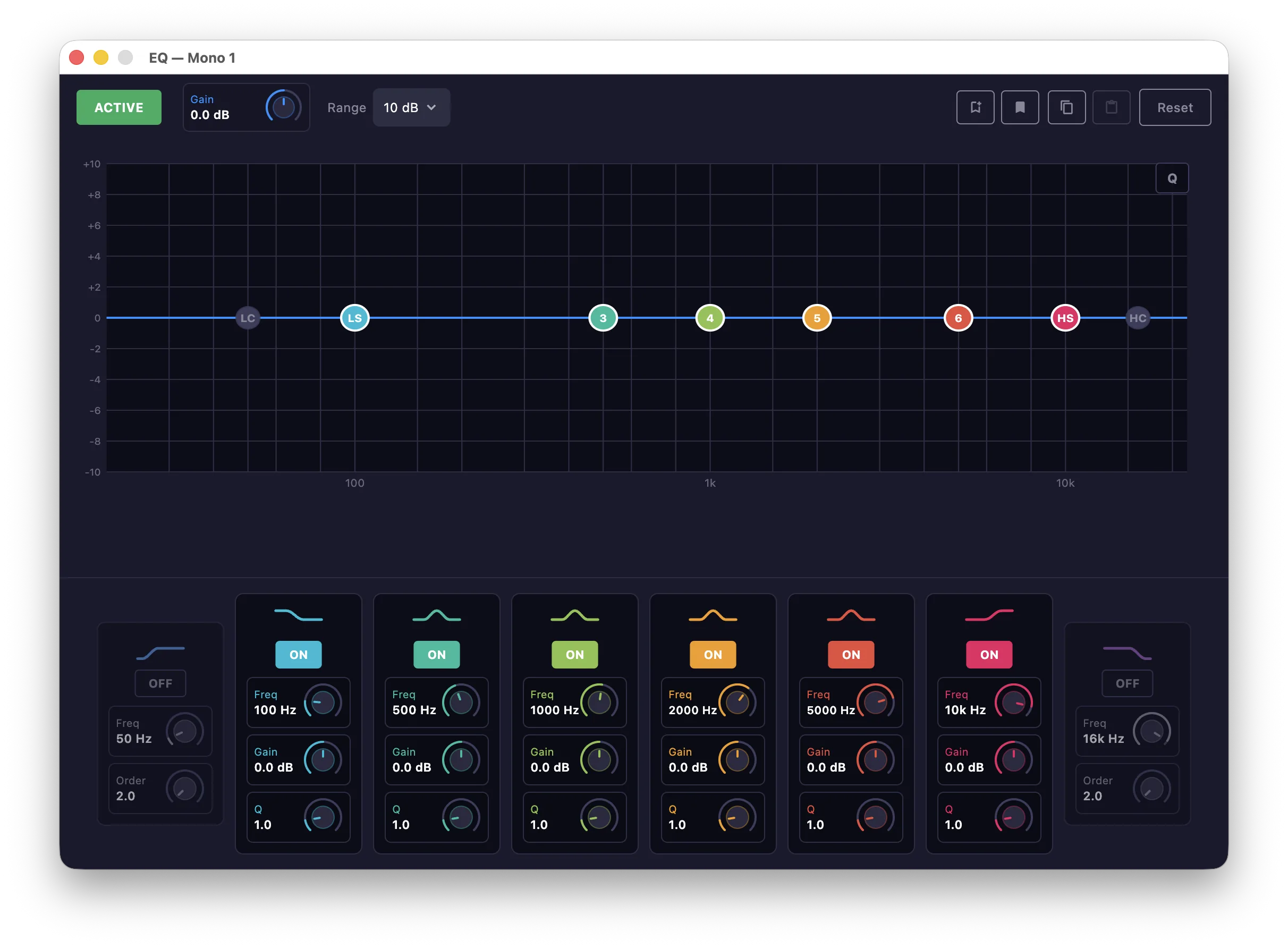
Open the EQ from a channel strip to access the channel's equaliser.
Dynamics
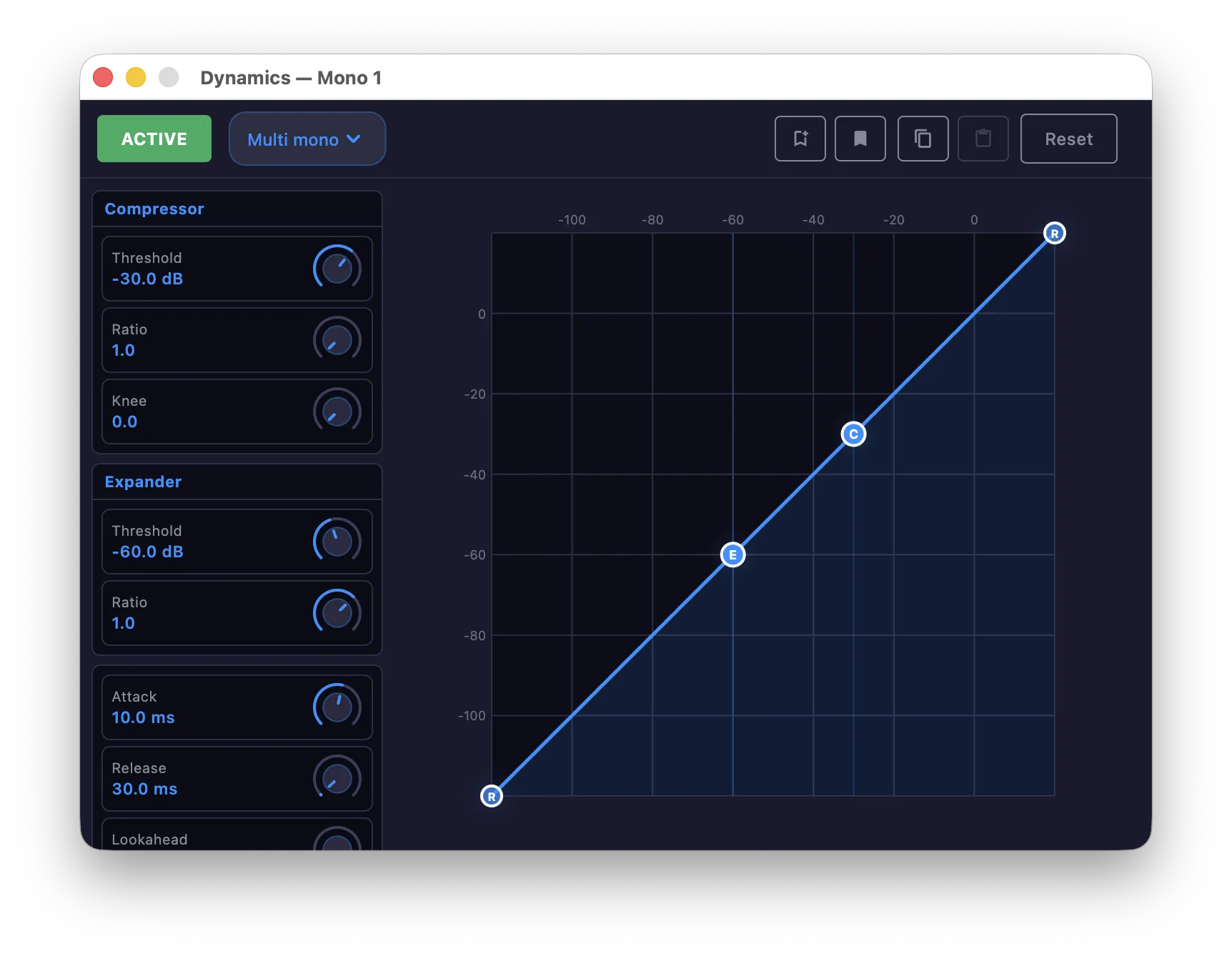
Open Dynamics to access the channel's compressor and expander.
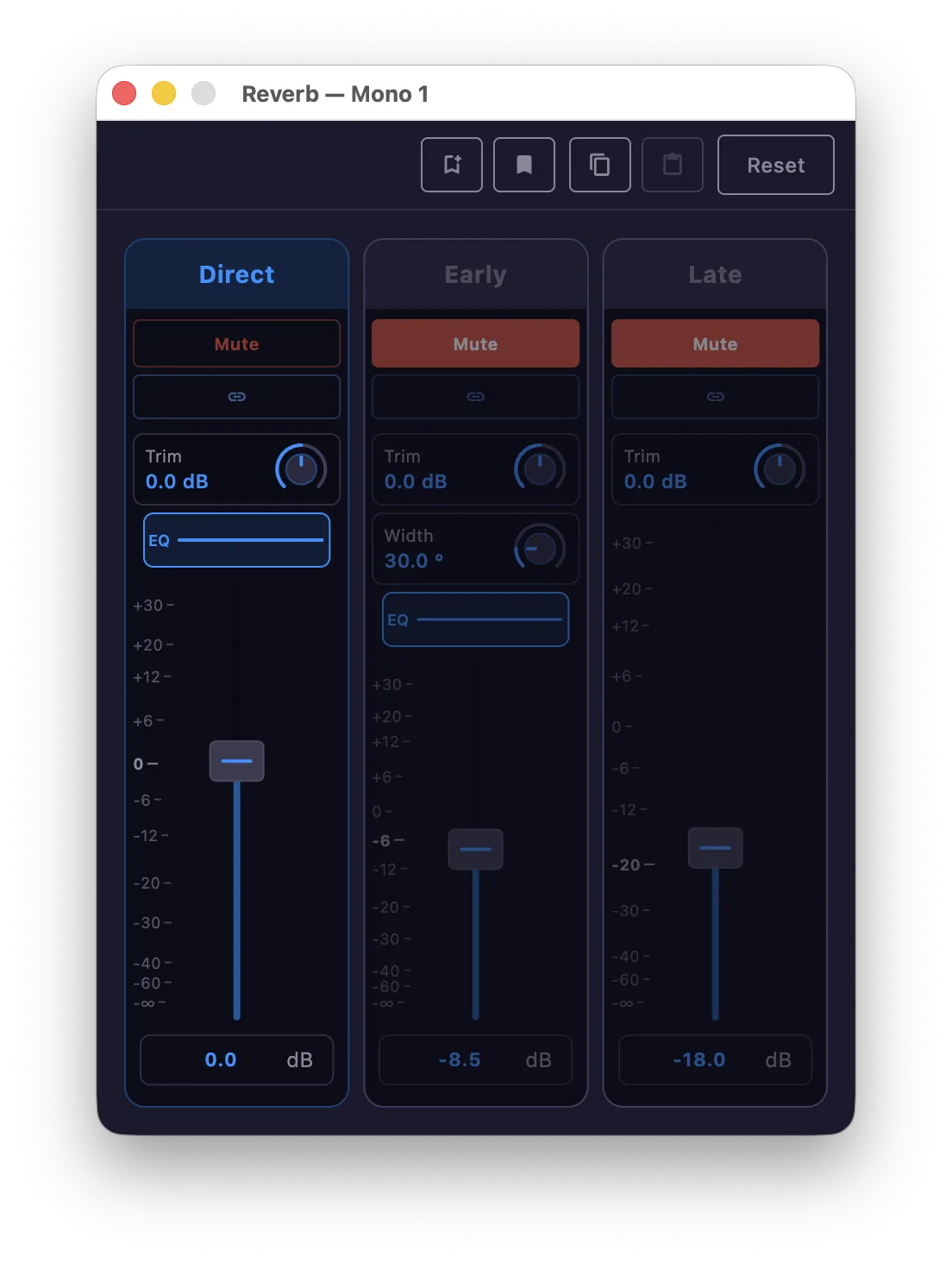
Reverb
Open Reverb to access the channel's reverb.
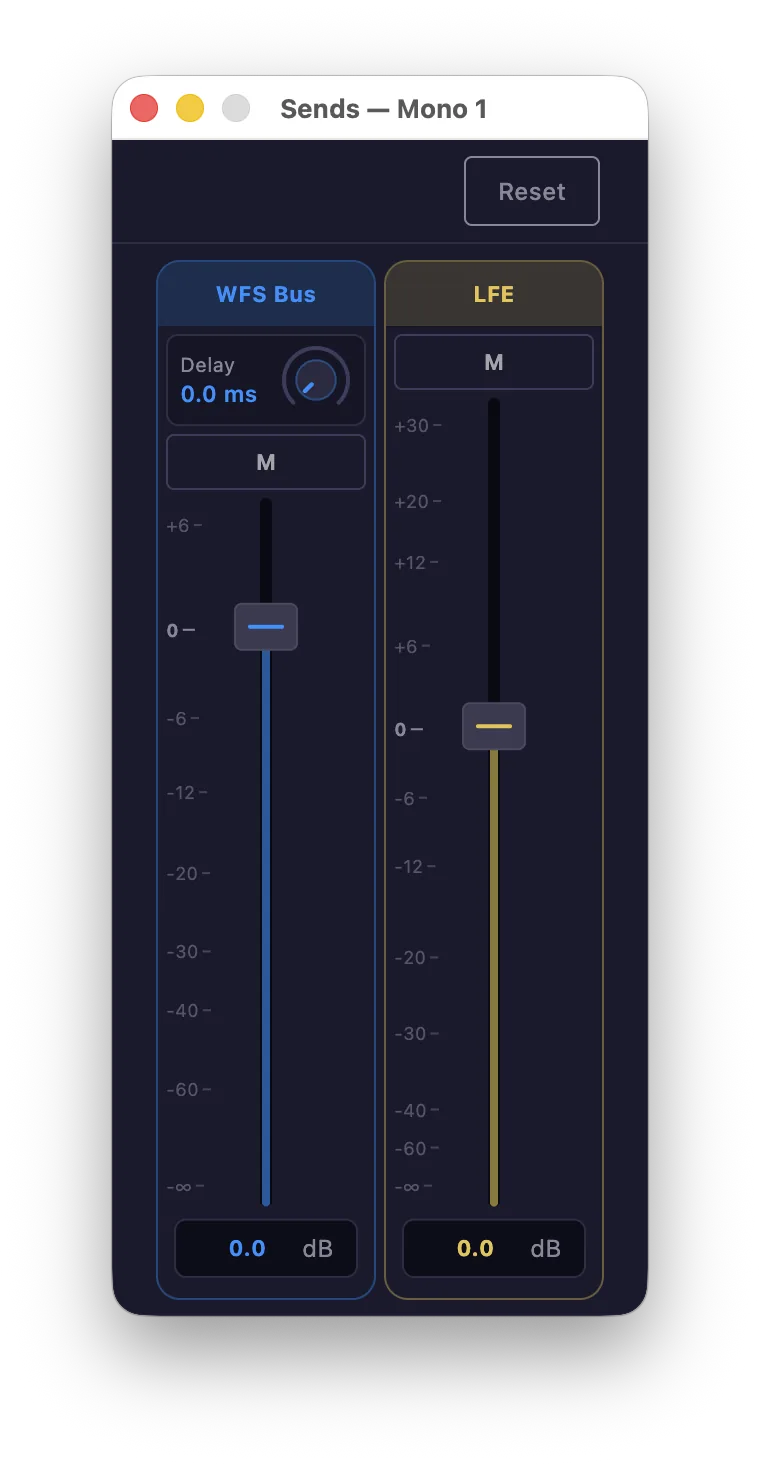
Sends
Open Sends to route the channel to the buses and LFE. Direct To Master channels have the LFE send only.
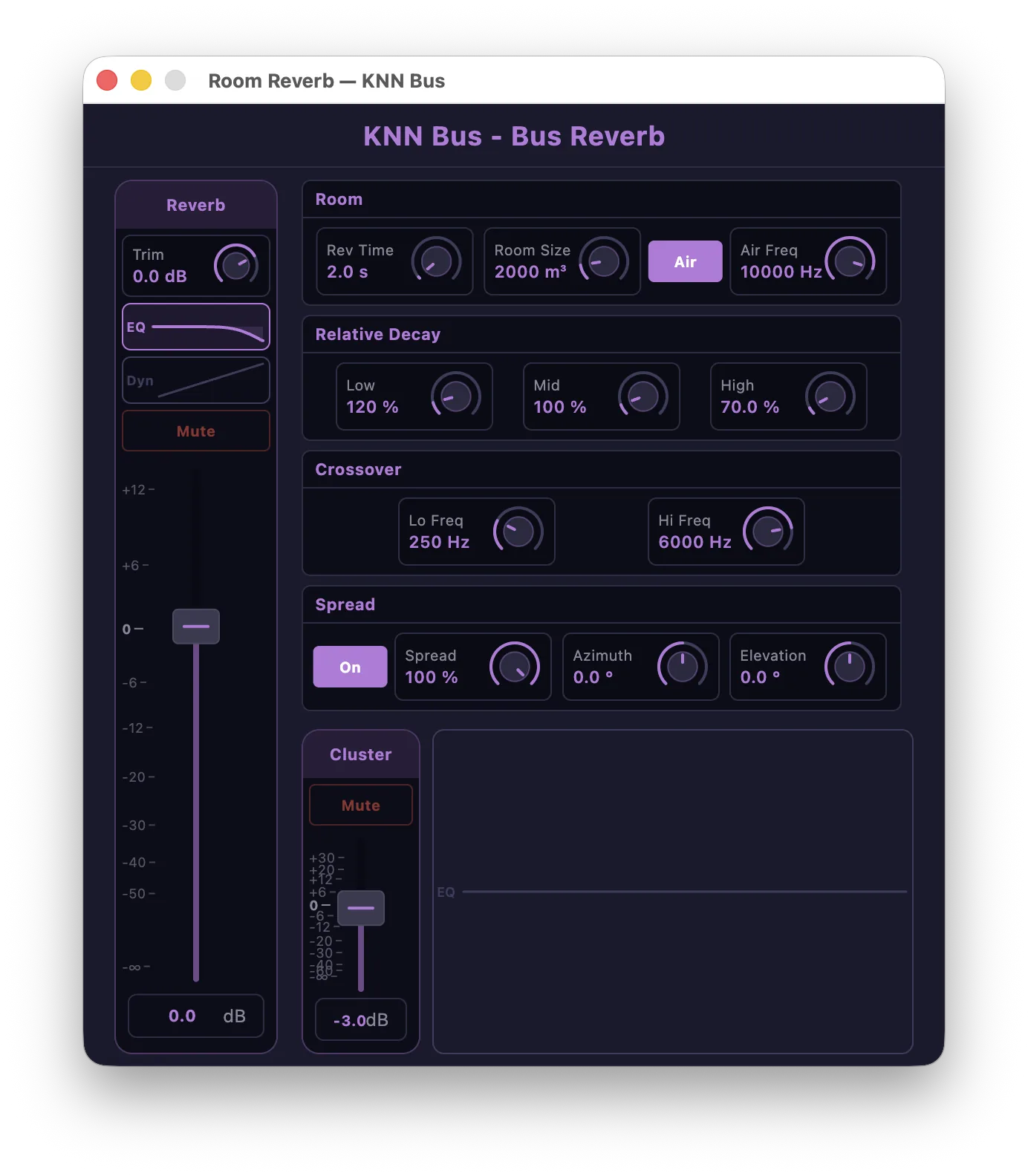
Bus reverb
Open Bus reverb from a Bus strip to access the bus's reverb.
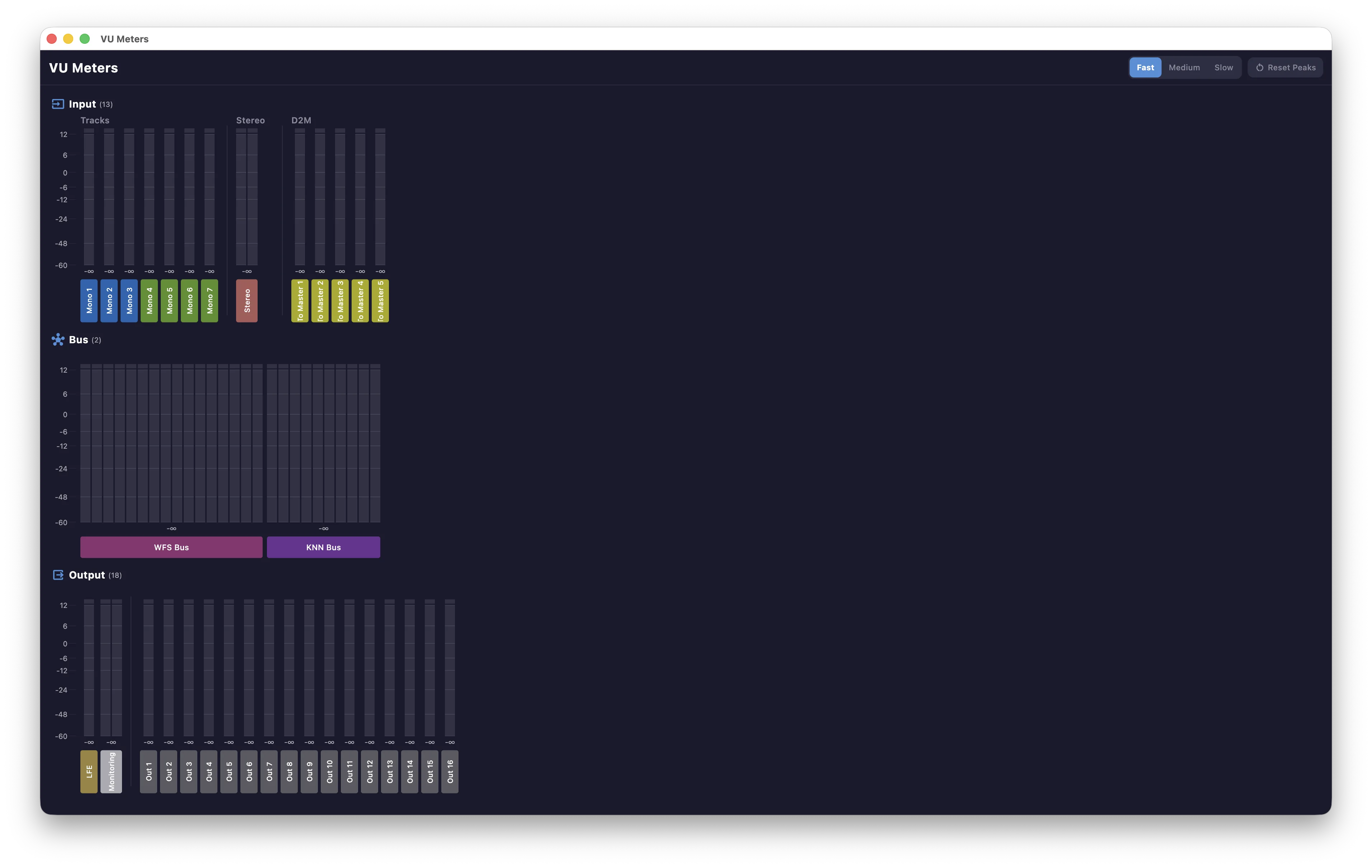
VU Meters
Open the VU Meters window to monitor levels across the system — Input (Tracks, Stereo, D2M), Bus and Output (LFE, Monitoring and outputs). Choose Fast, Medium or Slow ballistics, and Reset Peaks to clear the peak holds.
Click an input's meter to see that input's contribution across the buses and outputs — a visual solo that does not affect the audio.
Cue strip
A cue strip gives quick access to the cue functions here — select a cue, navigate the list, Save, GO and Autoload. See the Cues window for the full detail.
Shared tools
Like other windows, this one includes MIDI map mode and a Mixer history to step back through recent changes. The EQ, Dynamics and Reverb editors also let you save and recall their settings as library presets.