Home
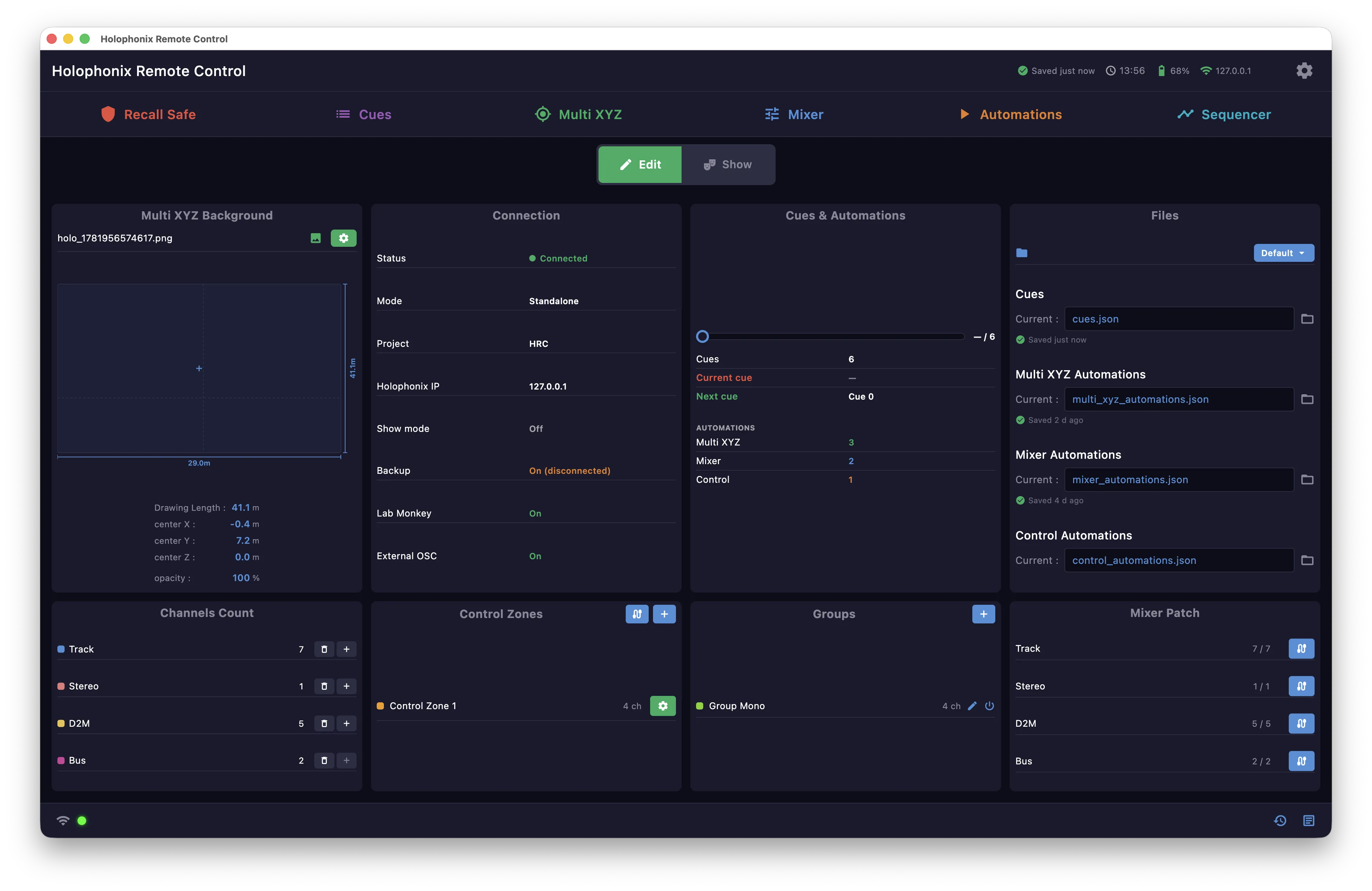
The Home window opens once the connection is established. It shows the project's status, gives access to every other window, and hosts the bricks where you set up your session.
Edit and Show modes
Switch between Edit and Show modes at the top. Edit gives full access; Show locks the interface for live operation, hiding edit controls to prevent mis-clicks.
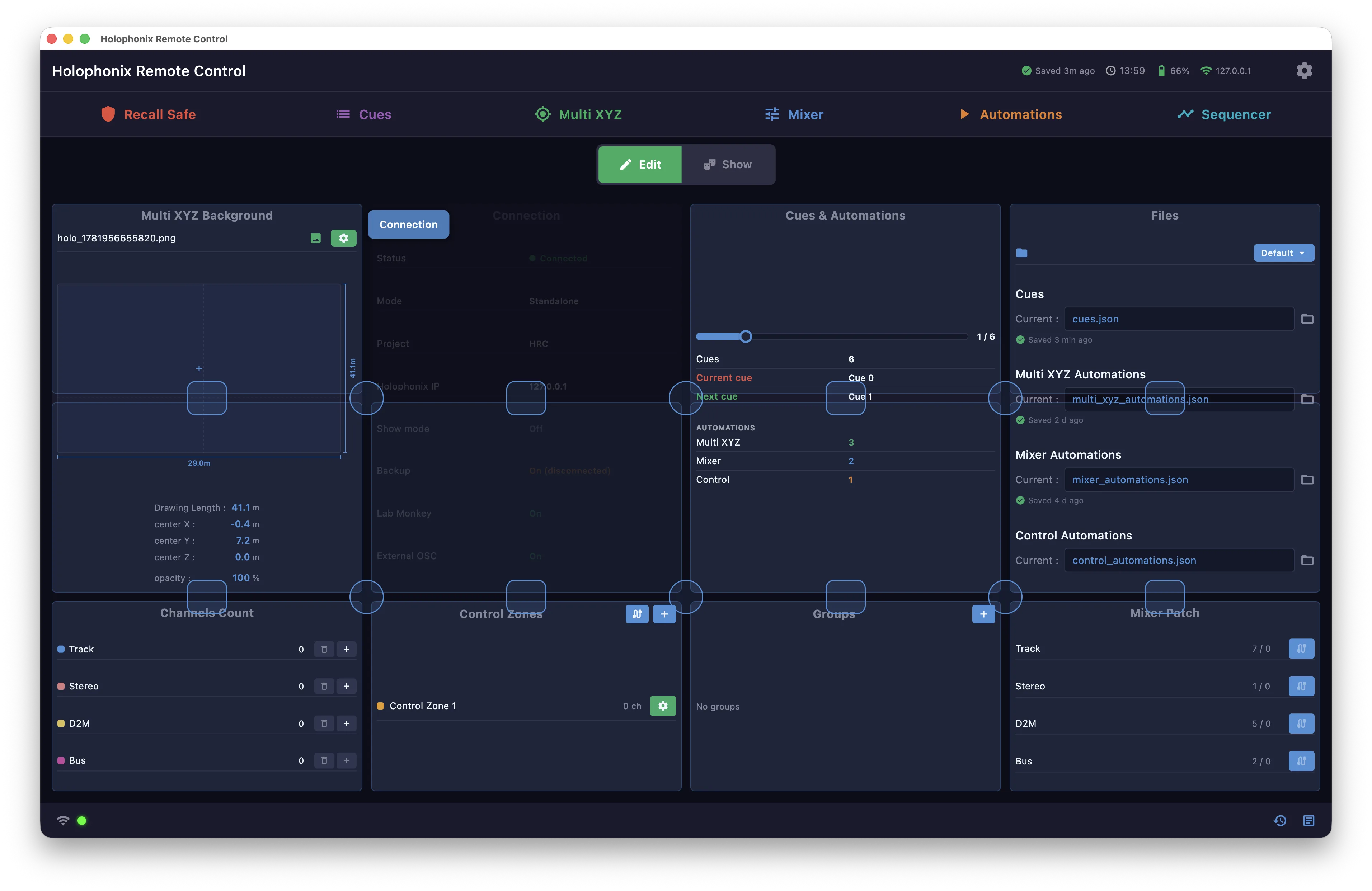
In Edit mode you can also rearrange the bricks — drag them around the grid to build the layout you want.
Navigation
The tiles at the top open the other windows: Recall Safe, Cues, Multi XYZ, Mixer, Automations and Sequencer.
Channels
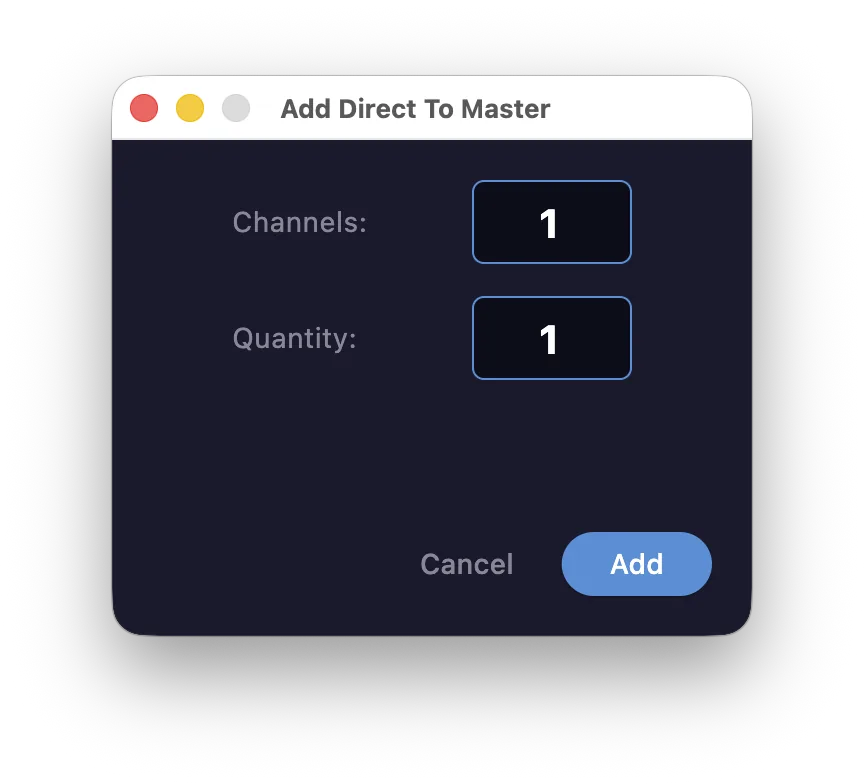
The Channels brick shows how many channels of each type exist. Add or remove channels on the Holophonix from here.
Files
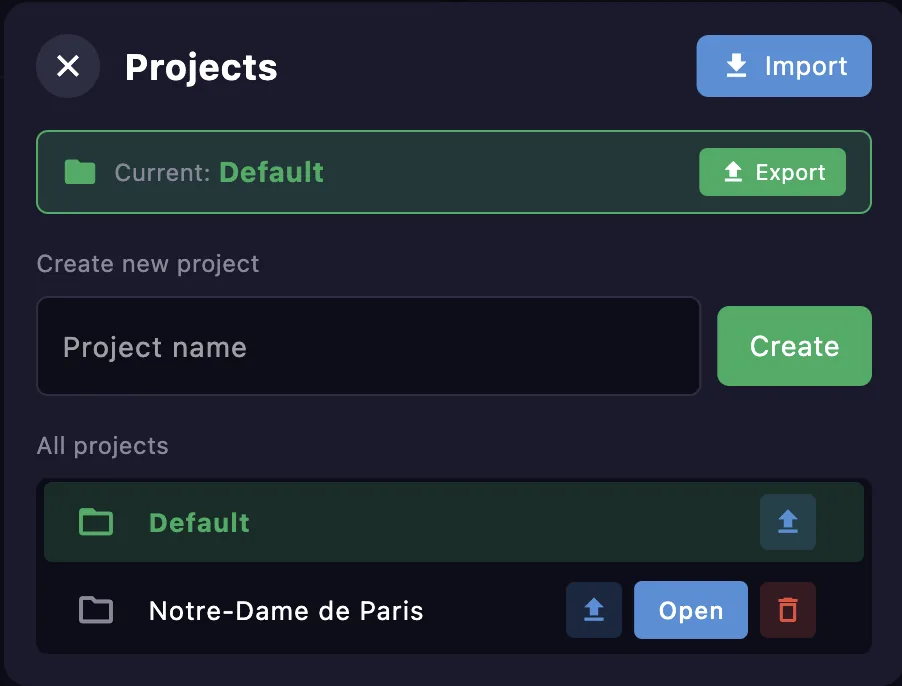
The Files brick manages the current project and its data files — the cue list
(cues.json) and the Multi XYZ, Mixer and Control automation files. Switch project, or load
and create files.
Multi XYZ Background
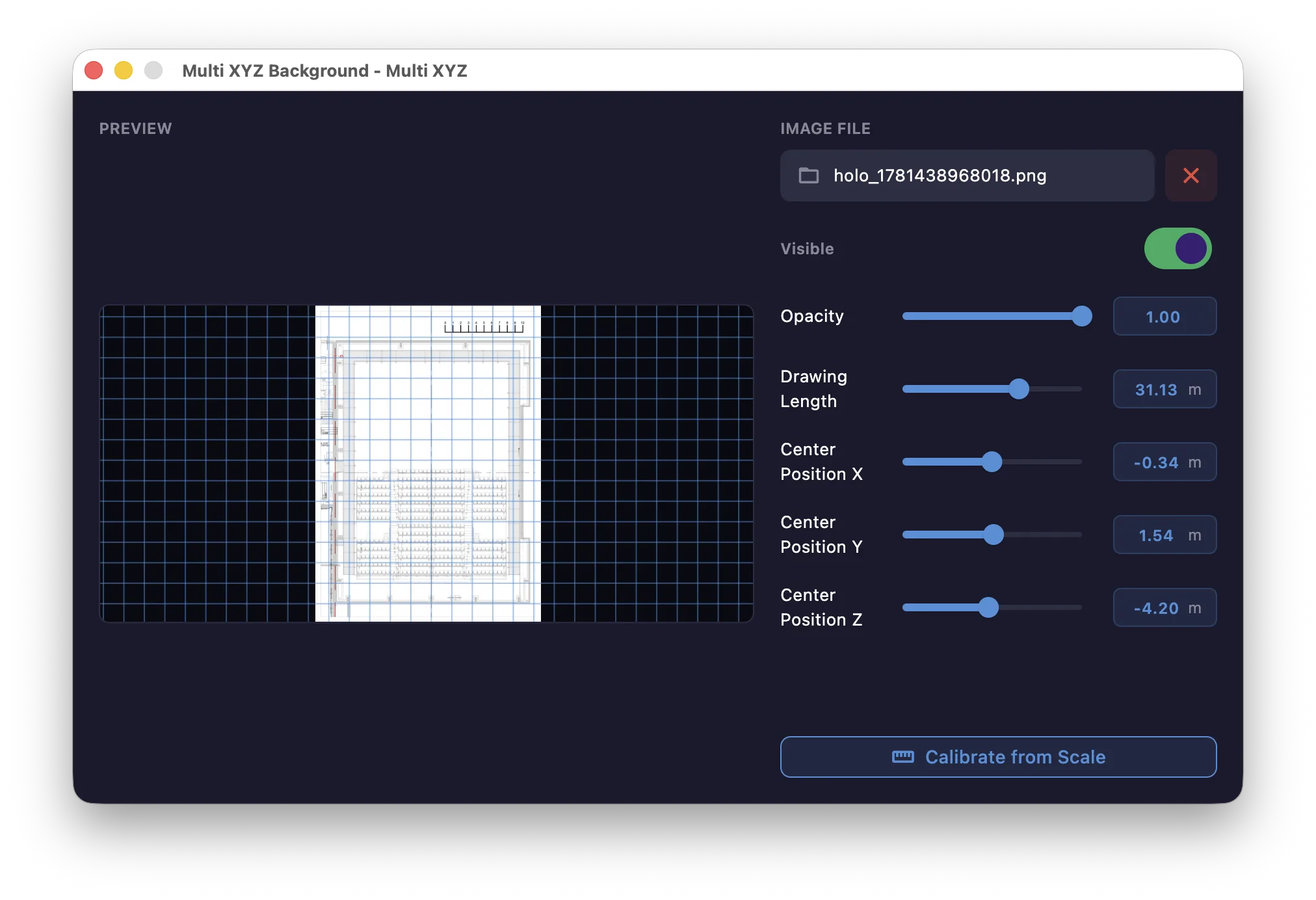
Set a background image behind the Multi XYZ pad for visual reference, and adjust its position (center X/Y/Z), opacity and scale.
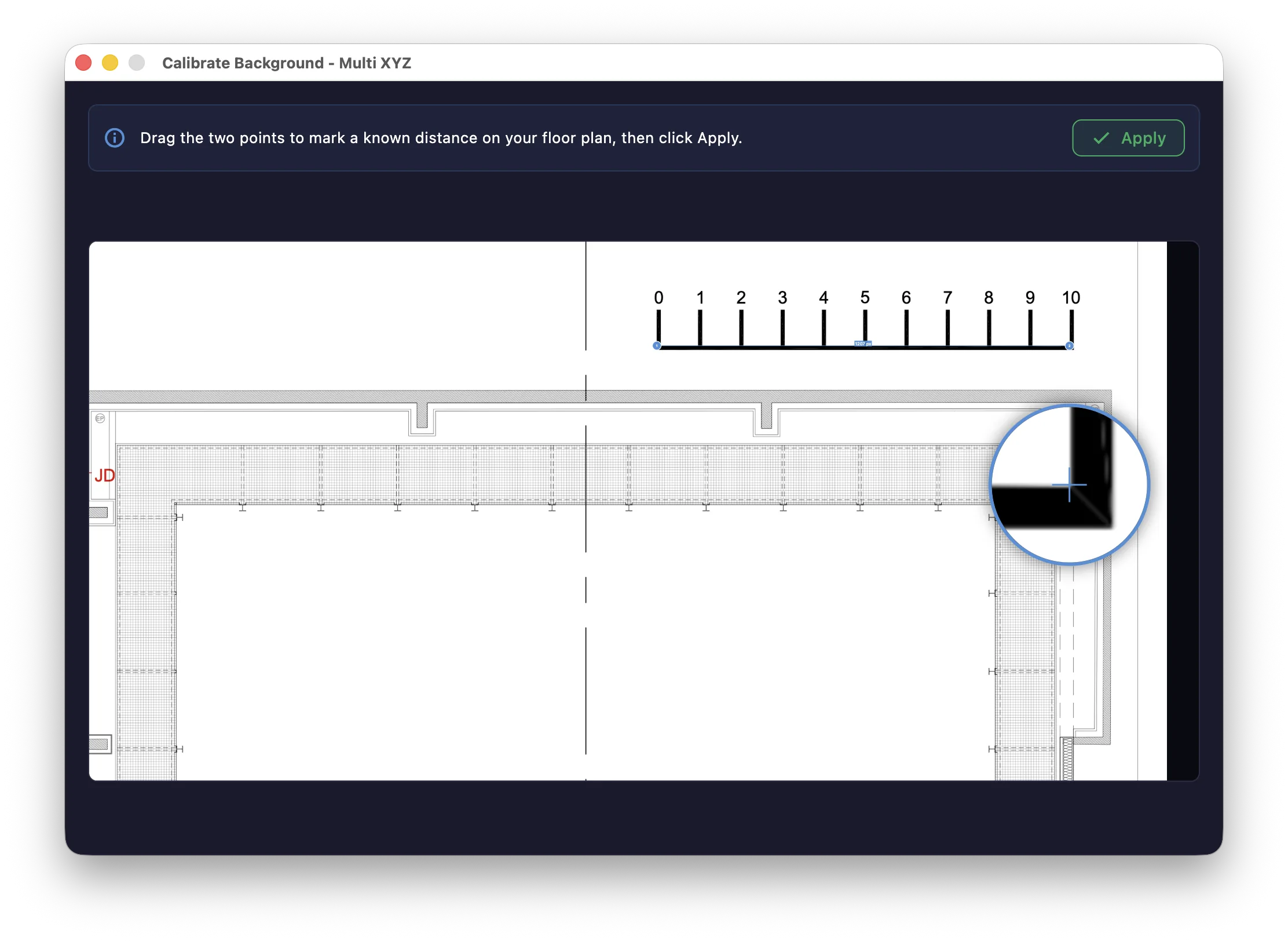
Use calibrate to match the image to the real-world scale of your venue.
Control Zones
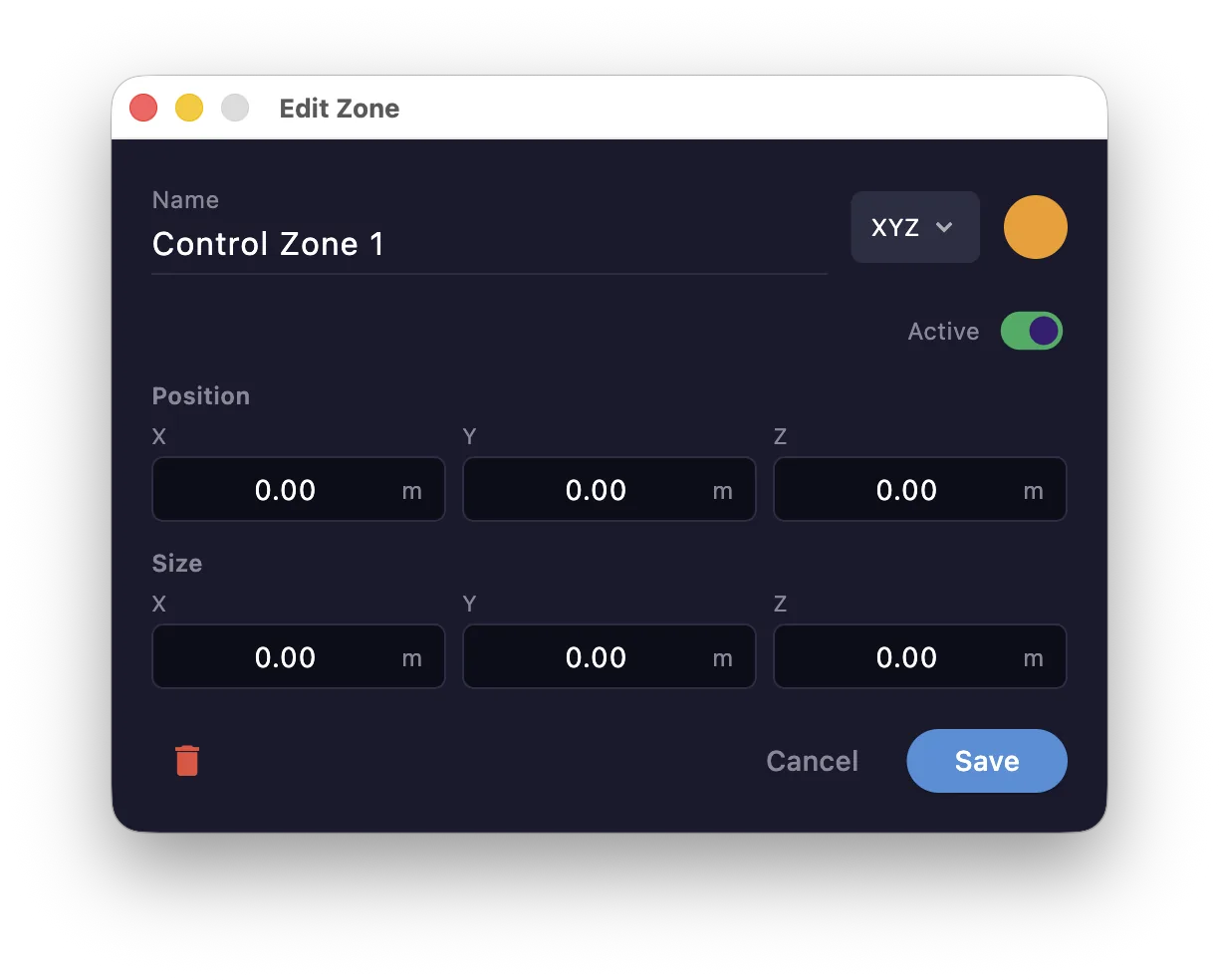
Create named control zones — sub-areas of the stage. Edit a zone's name, position and size.
Use the Multi XYZ Patch to choose which channels belong to a zone, so their positions appear in the Multi XYZ window.
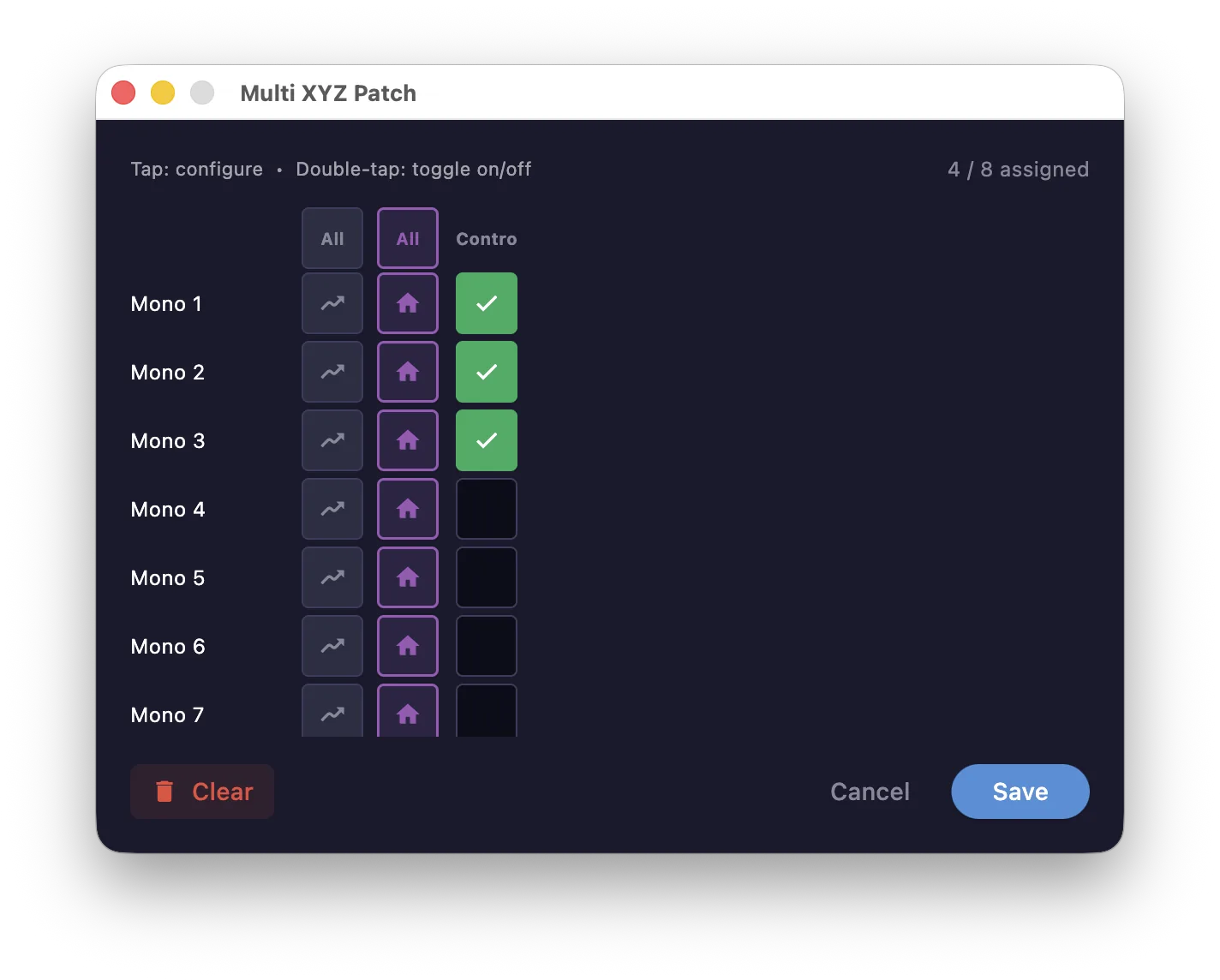
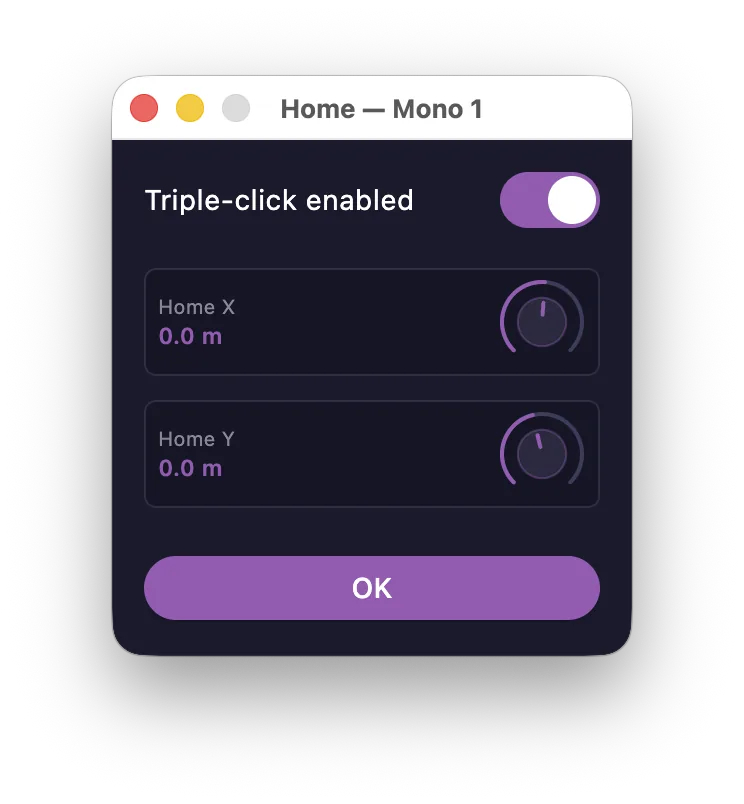
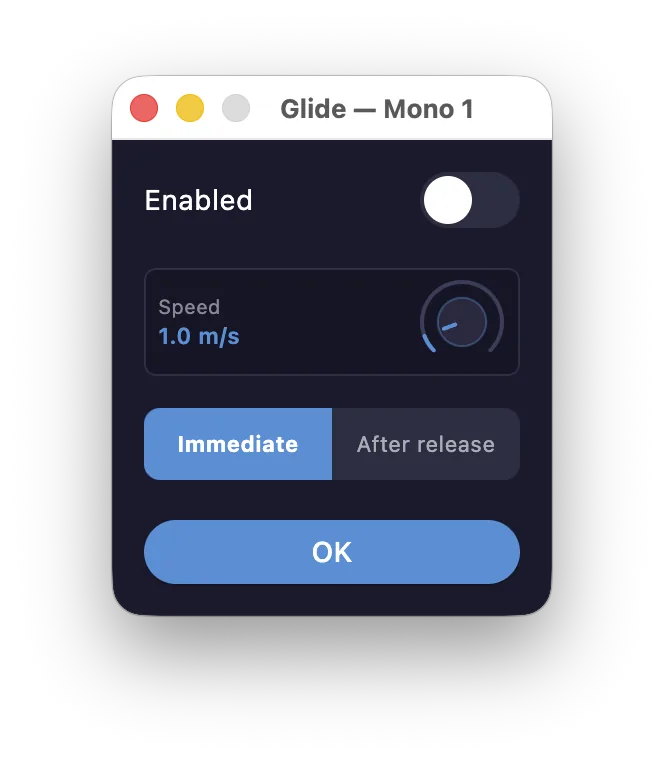
For each patched channel you can also set its Home position and its Glide.
The Home position is the reference point a triple-click returns the channel to.
Glide sets whether moves glide at a fixed speed, and the mode — immediate or after release.
Groups
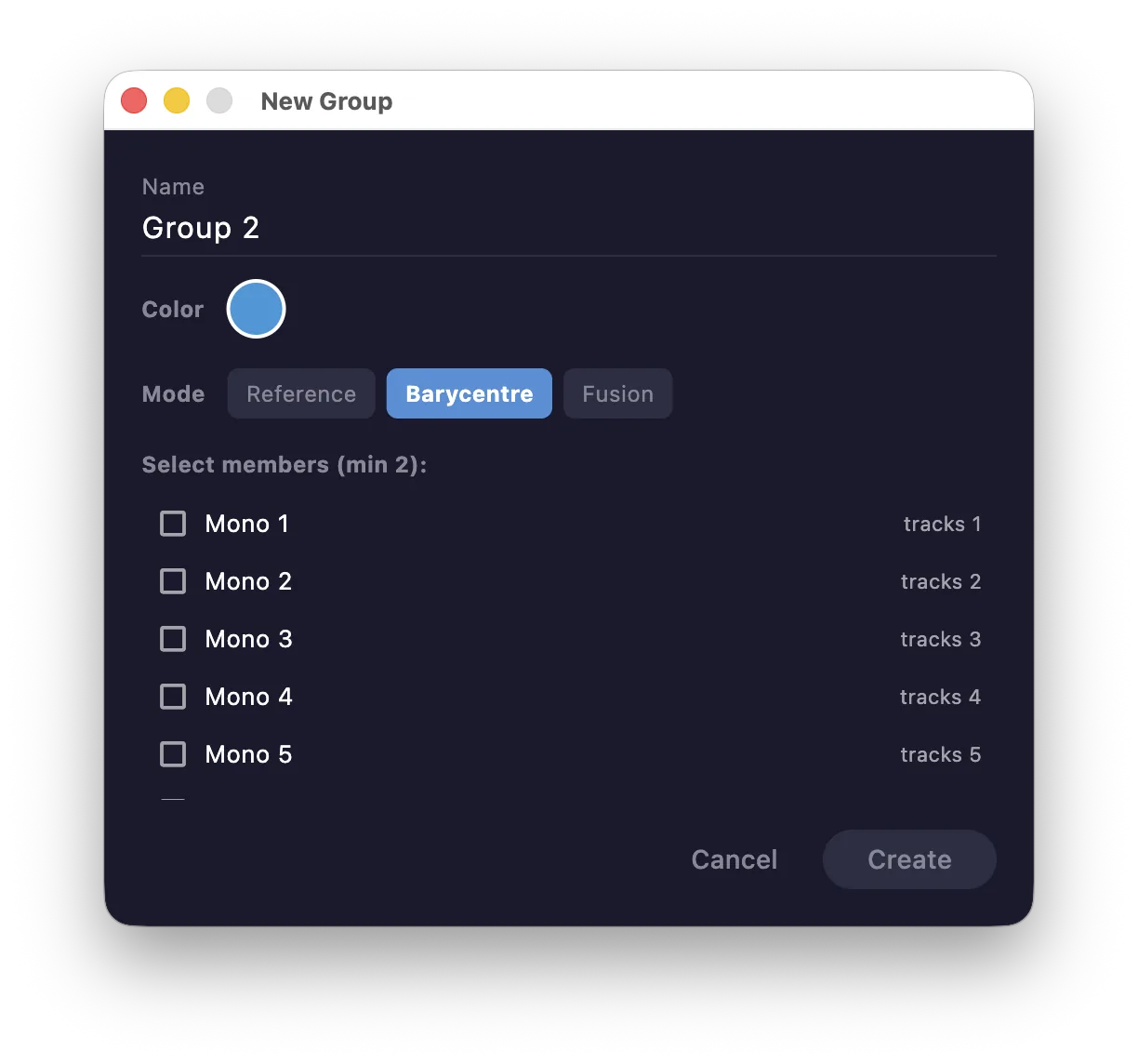
Create source Groups, each with its own name, color and icon, in one of three modes. You can always still move points individually; the mode sets how the group moves as a whole:
- Reference — you choose one channel as the reference point; moving it moves the whole group.
- Barycenter — a virtual point is created at the group's barycenter; moving it moves the group.
- Fusion — all points are stacked at the reference channel's position.
Open a group to edit it: toggle Active on or off, choose which parameters the group propagates to its members (selection, position, bus routing, gain, mute, solo, monitoring), and use Visible to show or hide the group's point and the links between its members on the Multi XYZ pad — both on the global stage and inside a control zone.
Mixer Patch
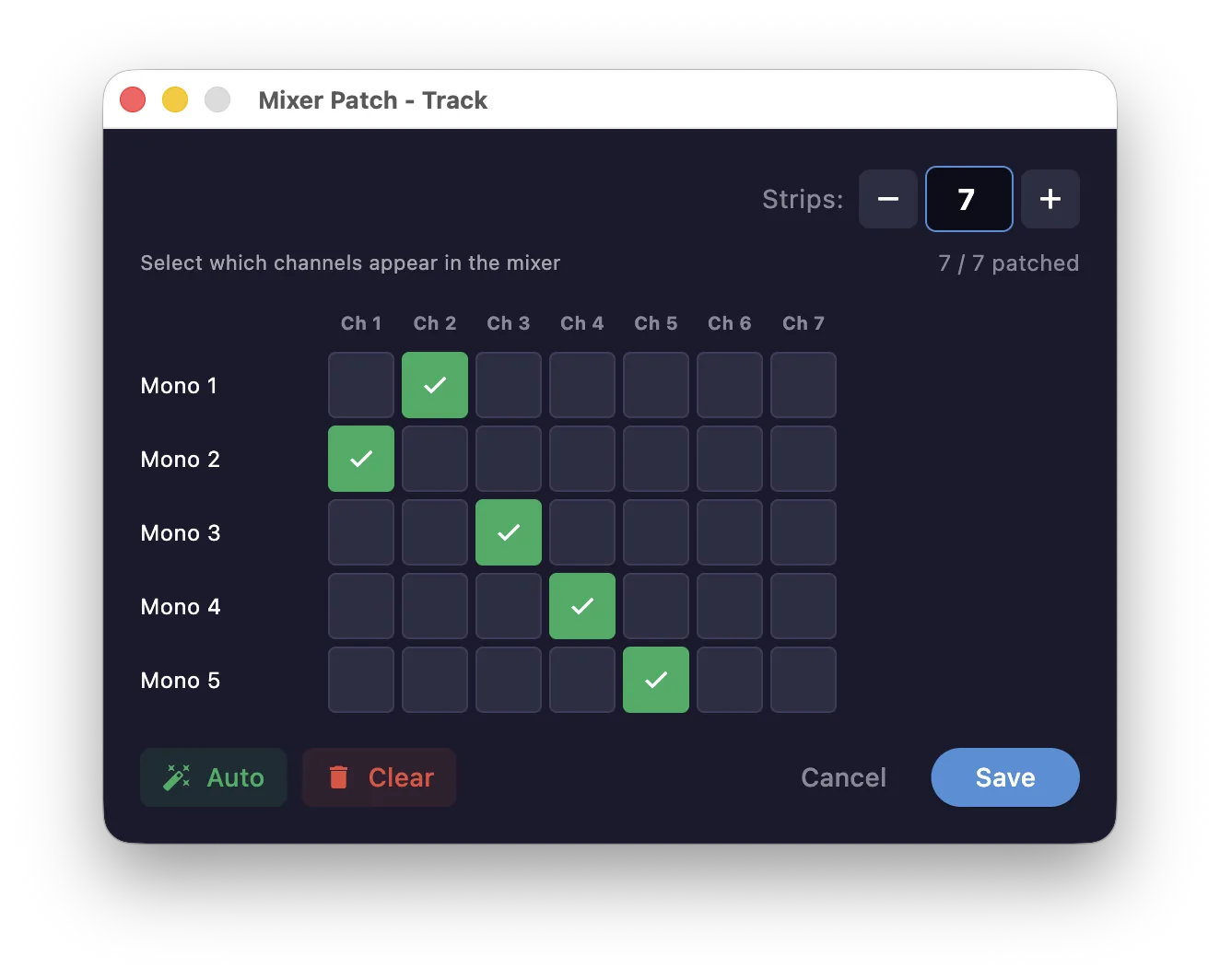
Use the Mixer Patch brick to show or hide channels in the Mixer — by patching them or not — and to change their display order.