Settings
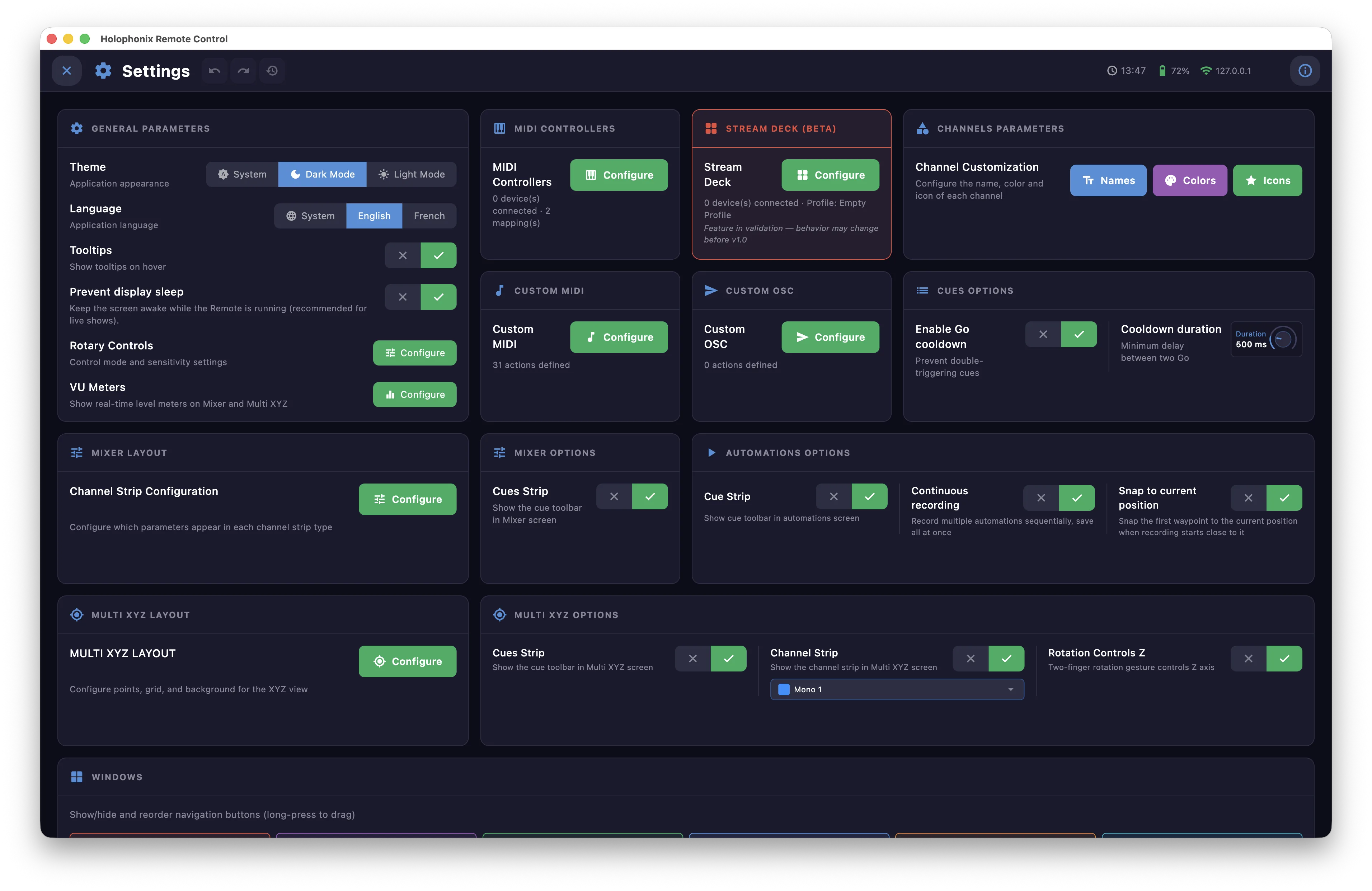
Open Settings from the gear icon on the Home. It is a grid of bricks, presented below in the order they appear in the window. Simple options are set inline; larger tools open with Configure and are documented on their own page.
General Parameters
- Theme — System, Dark or Light.
- Language — System, English or French.
- Tooltips — show or hide tooltips.
- Prevent display sleep — keep the screen awake while the remote is running.
-
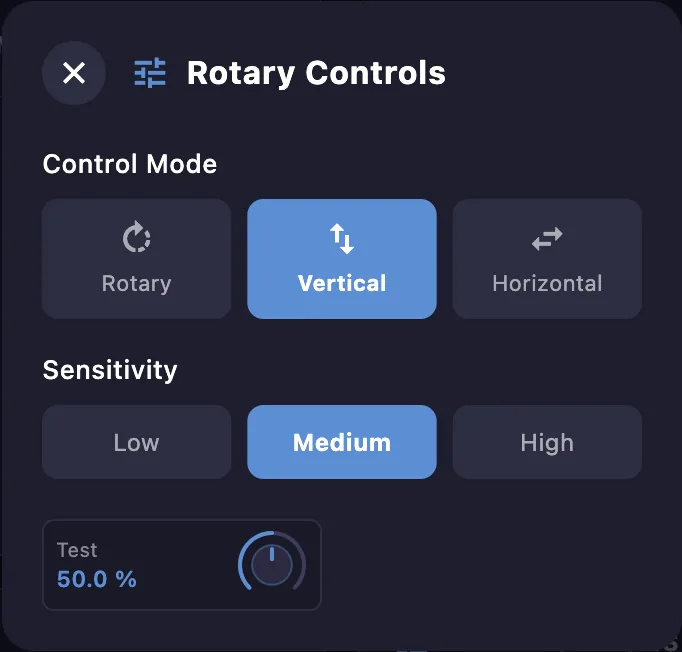
Rotary Controls — set the control mode (rotary, vertical or horizontal drag) and the sensitivity for knobs.
-
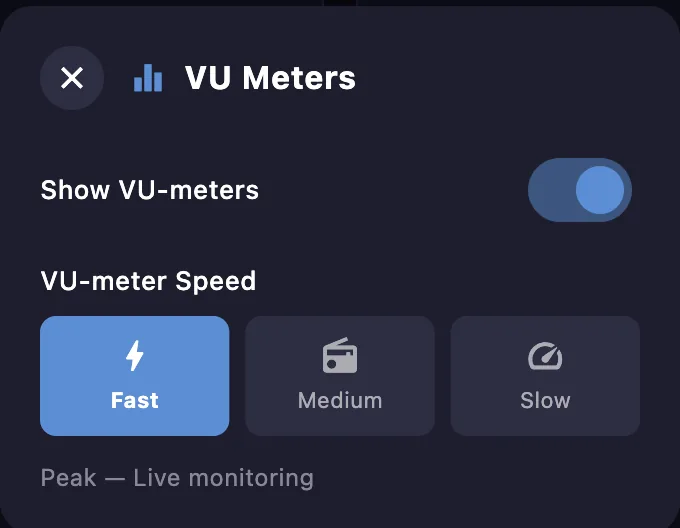
VU Meters — show or hide the meters and set their speed (Fast, Medium or Slow); see the VU Meters window for the meters themselves.
MIDI Controllers
Connect MIDI controllers and map them to app actions. See MIDI Controllers.
Stream Deck
Map an Elgato Stream Deck to control the app. See Stream Deck.
Channels Parameters
Customize each channel's name, color and icon. See Channels Parameters.
Custom MIDI
Create custom MIDI action buttons. See Custom MIDI.
Custom OSC
Create custom OSC action buttons. See Custom OSC.
Mixer Layout
Choose which parameters appear on each mixer channel strip. See Mixer Layout.
Mixer Options
Show the cue strip in the Mixer screen. See Mixer Options.
Automations Options
- Cue Strip — show the cue strip in the Automations window.
- Continuous recording — when off, recording an automation from the Rec button in the Multi XYZ or Mixer window stops automatically when you release. When on, record several automations in a row, then press Rec again to stop; each automation's prewait is offset so playback reproduces the sequence you traced.
- Snap to current position — when recording starts near the channel's current position, snap the first waypoint to it, to avoid position jumps.
Cues Options
- Enable Go cooldown — prevent double-triggering cues.
- Cooldown duration — the minimum delay between two GO.
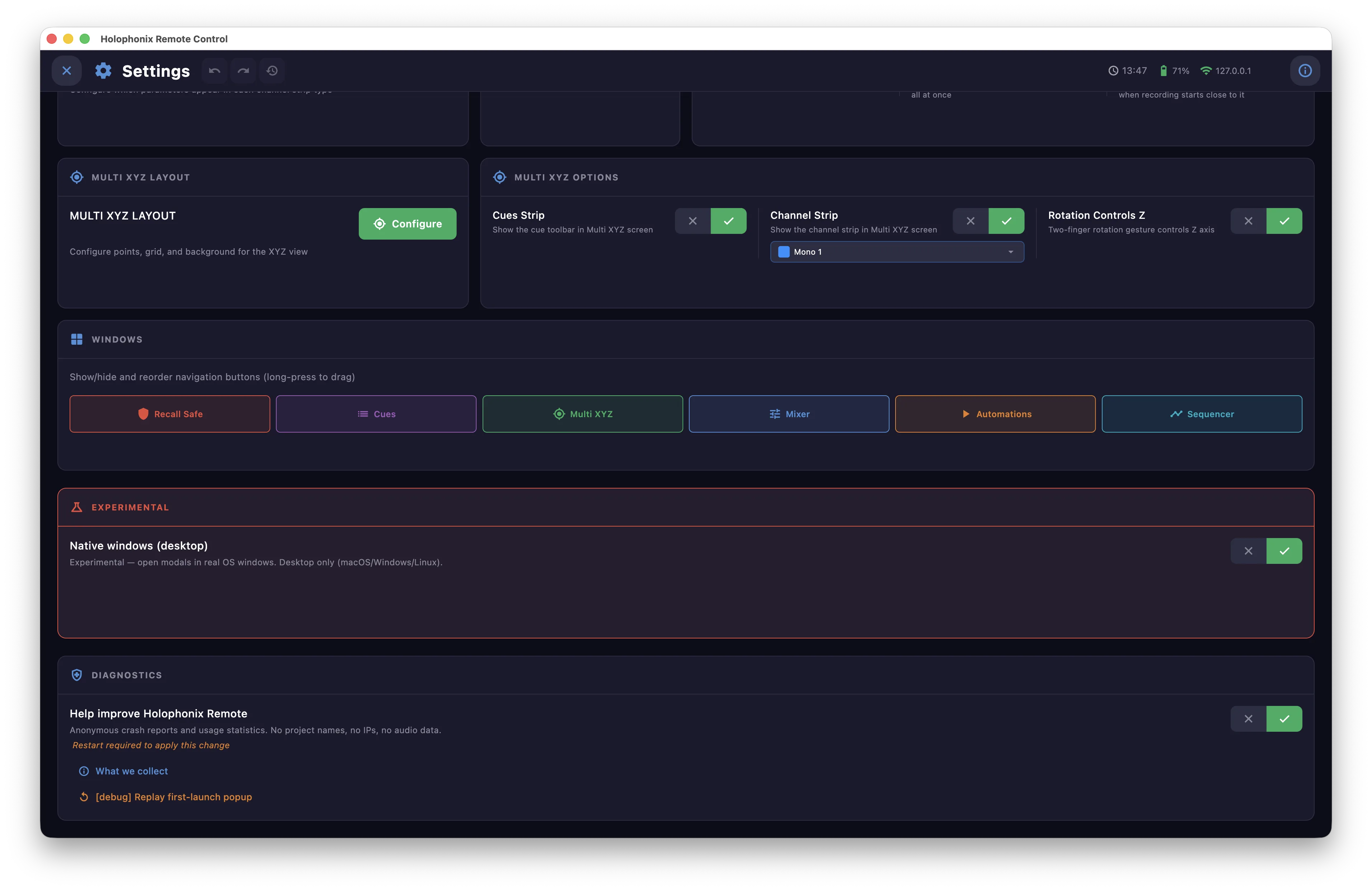
Multi XYZ Layout
Configure the points, grid and visibility of the Multi XYZ view. See Multi XYZ Layout.
Multi XYZ Options
- Cue Strip — show the cue strip in the Multi XYZ screen.
-
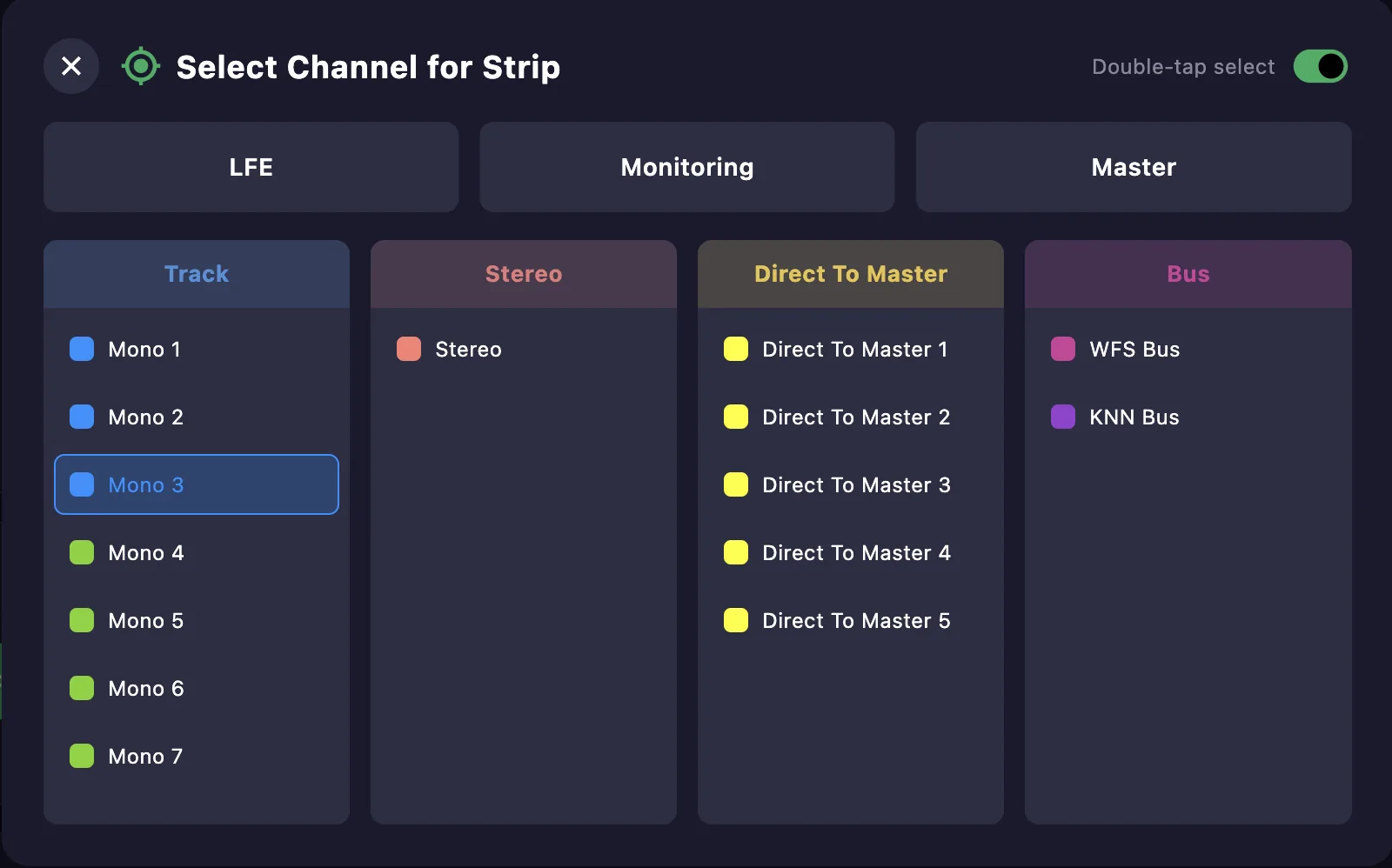
Channel Strip — show the channel strip in the Multi XYZ screen, with a channel selector to choose which channel it shows. Double-clicking a point shows that channel instead; double-click it again to return to the channel selected here.
-
Rotation Controls Z — a two-finger rotation gesture on a channel's point controls its Z axis.
Windows
Show or hide the navigation buttons on the Home and reorder them (long-press to drag): Recall Safe, Cues, Multi XYZ, Mixer, Automations and Sequencer.
Experimental
Native windows (desktop) — open modals in real OS windows (macOS, Windows and Linux only).
Experimental
This feature is still in development and may be unstable.
Diagnostics
Turn on Help improve Holophonix Remote to help fix bugs and improve the app. Everything is anonymous, you can turn it off at any time, and it is always off in Show mode. What we collect lists exactly what is sent:
Crash reports:
- Device type (e.g. macOS desktop, iPad)
- Operating system version
- App version and build number
- Crash stack traces (file paths anonymized)
- Your last 50 actions (cue recall, mode change…)
Anonymous usage — events: app.boot, screen.viewed, cue.recalled,
cue.go_pressed, cue.created, automation.played, automation.created,
project.switched, connection.mode_set, midi.device_connected.
Properties attached: app_version, os_name, connection_mode, holophonix_version.
We never send:
- Show or project names
- Local network IP addresses
- Personal user folders or filenames
About
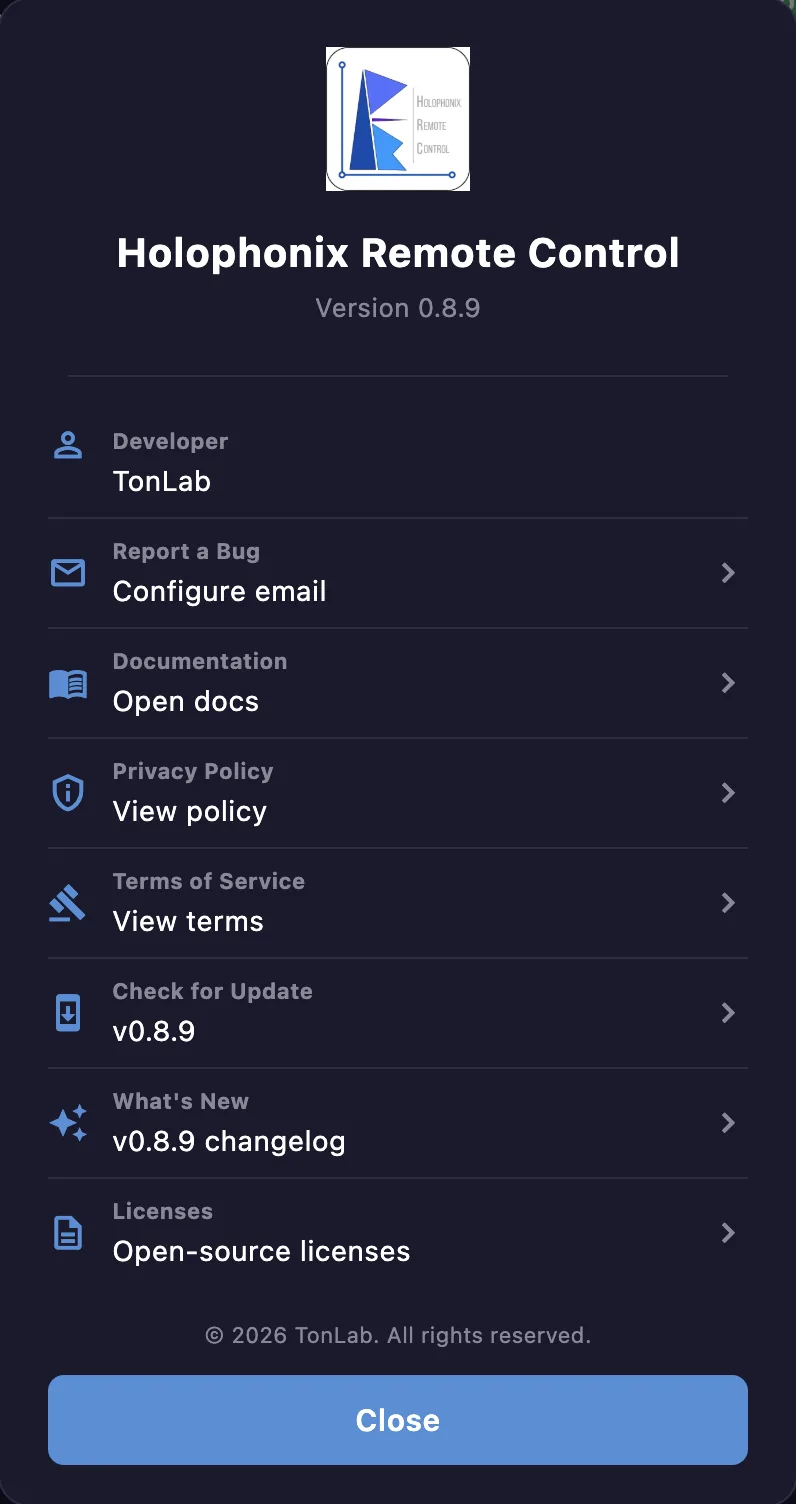
Open About from the info icon. It shows the app version and developer, and links to:
- Report a Bug — configure email and send a report.
- Documentation — open these docs.
- Privacy Policy and Terms of Service.
- Check for Update — see whether a newer version is available.
- What's New — the changelog for the current version.
- Licenses — open-source licenses.