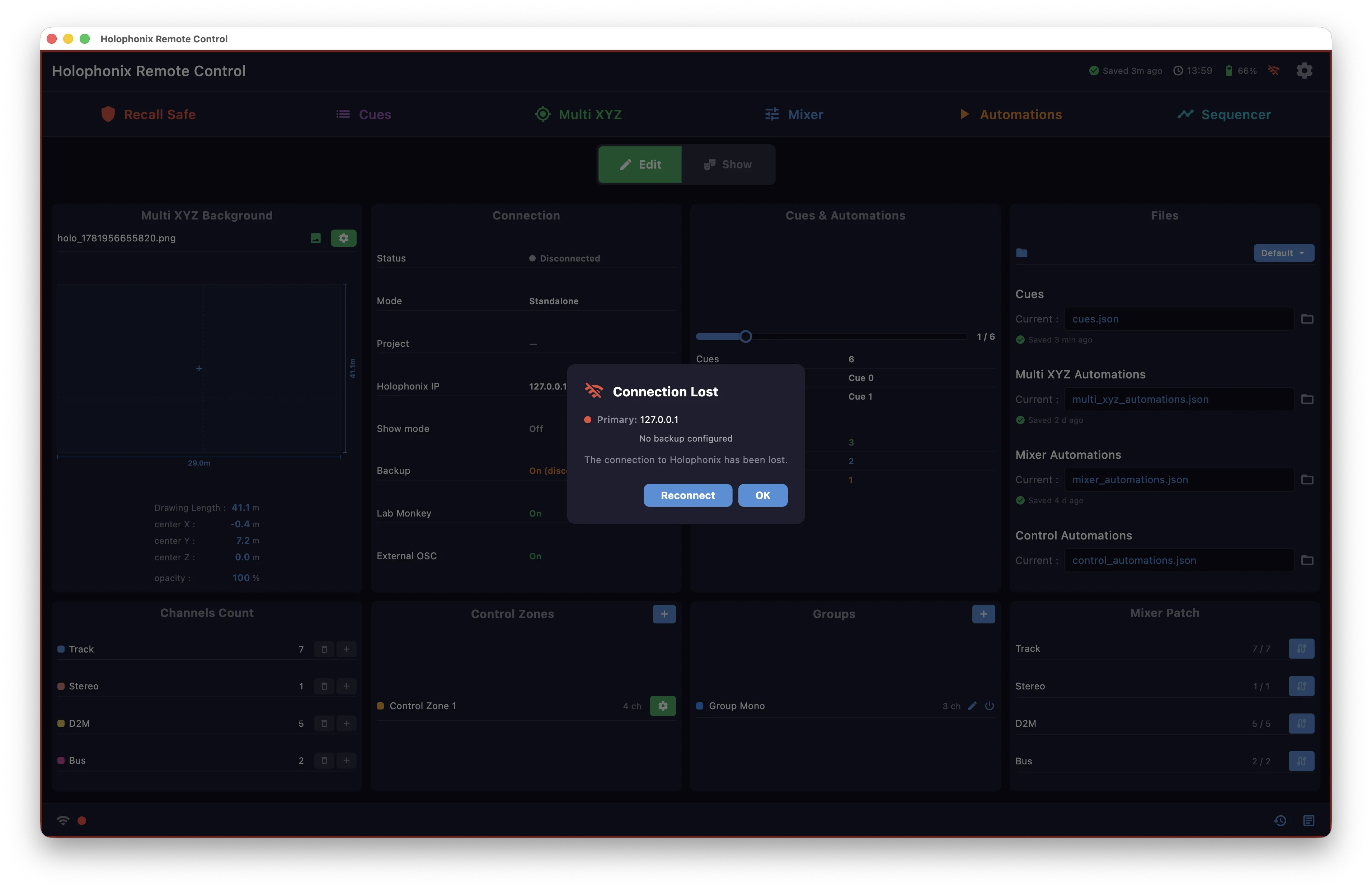
Connection
Use the Connection screen to connect to your Holophonix, in one of three modes:
- Standalone — connects directly to the Holophonix.
- Network → Server — the app connects to the Holophonix and hosts an HRC server for remote clients.
- Network → Client — the app follows a session hosted by another instance; it has no direct connection to the Holophonix.
Step by step
See Connecting to Holophonix for a guided walkthrough.
Standalone
The app connects directly to the Holophonix:
- Network interface — the network card to connect through.
- Holophonix IP — the processor's IP address.
- Recent addresses appear below the field.
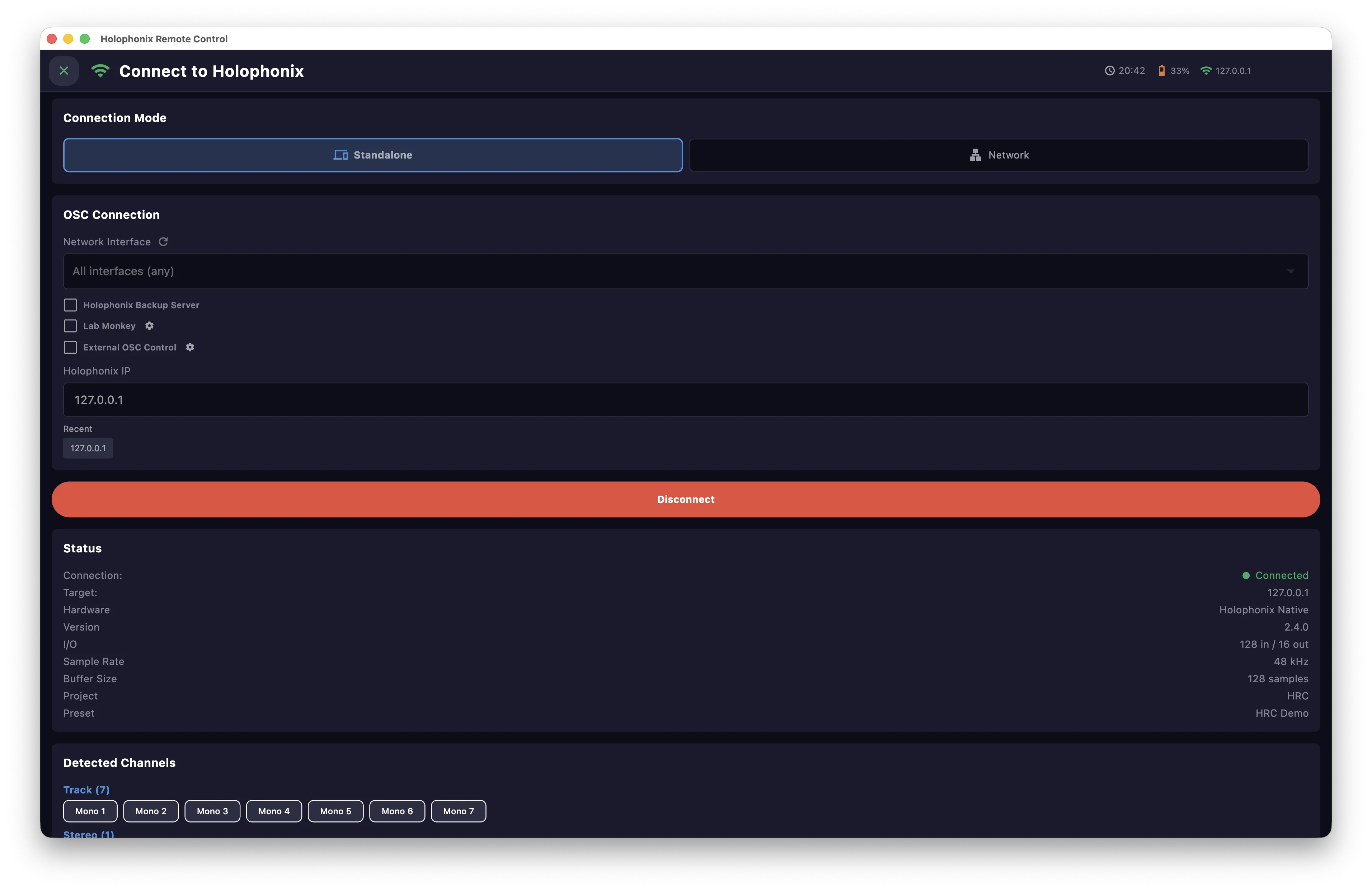
Server
Server mode uses the same processor connection settings as Standalone, and also opens the server. Set the server name and port; a password is optional.
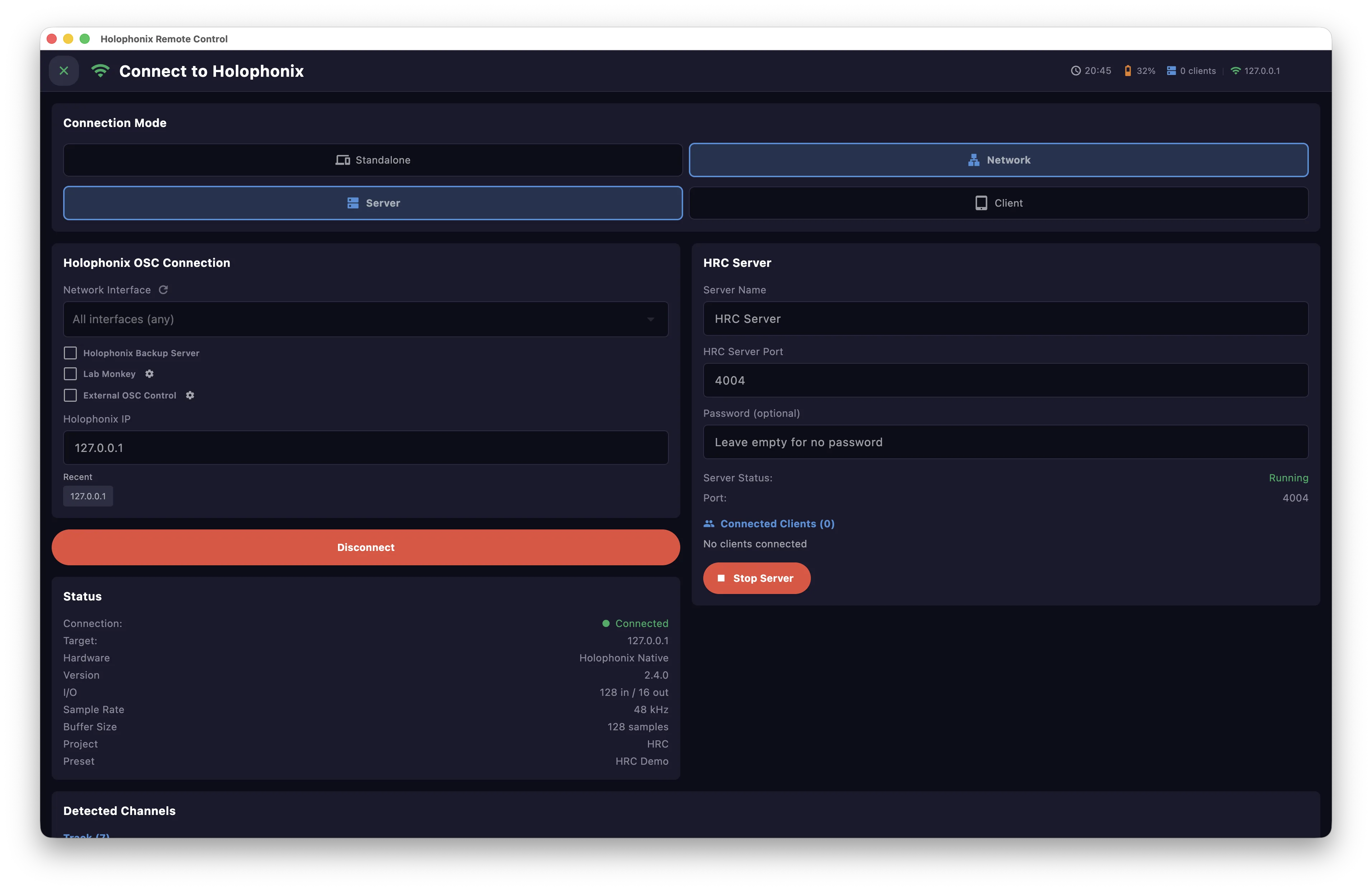
Once clients are connected, use Manage Clients to set each one to View (read-only) or Edit (full rights) — or remove it.
Client
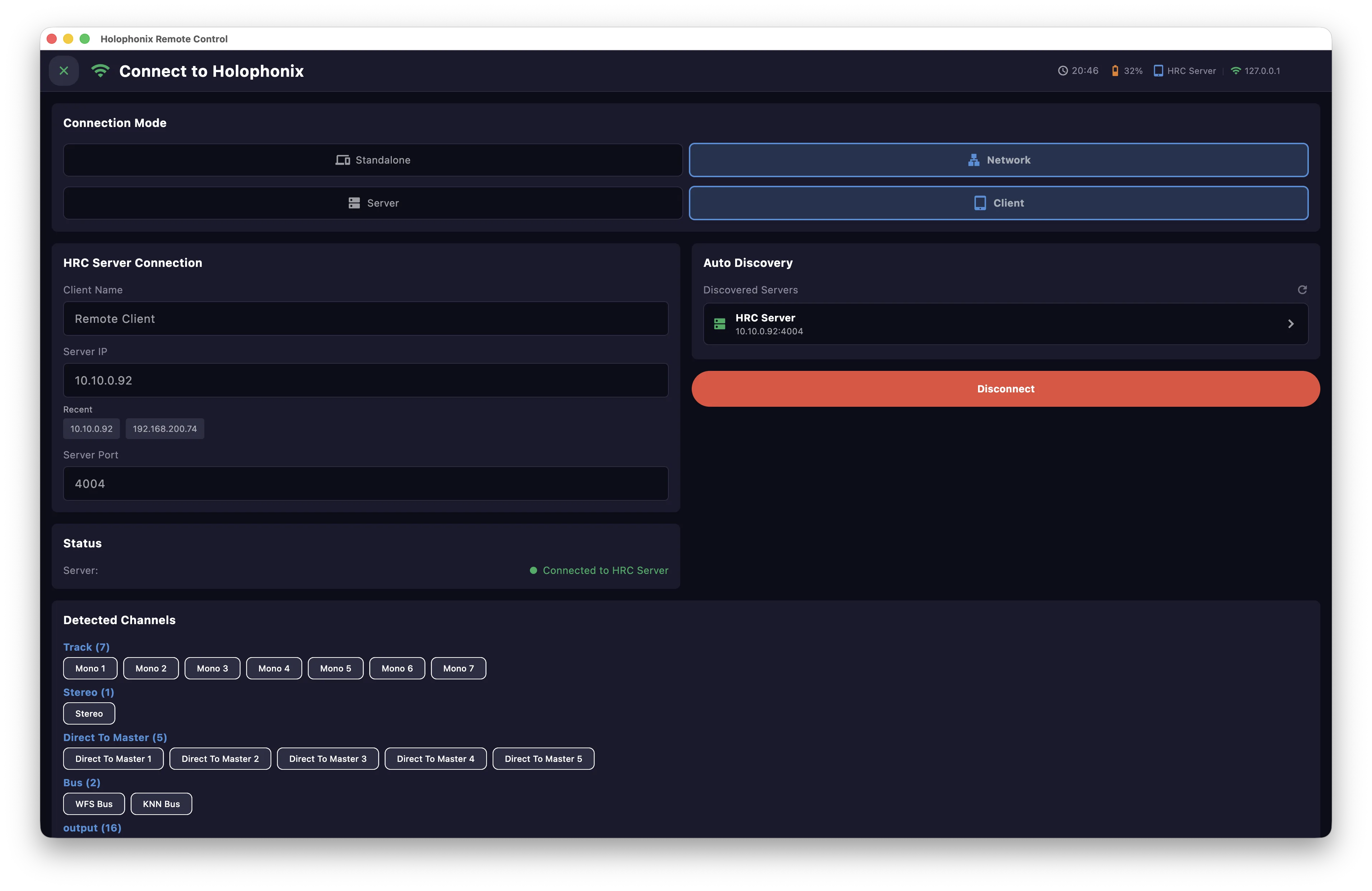
Client mode connects to an HRC Server instead of the Holophonix directly. Connect in one of two ways:
- Enter the server's IP and port.
- Pick a server from Auto Discovery.
You will be asked for the password if the server has one.
Connection options
In Standalone and Server modes, a few extra options sit with the connection settings:
-
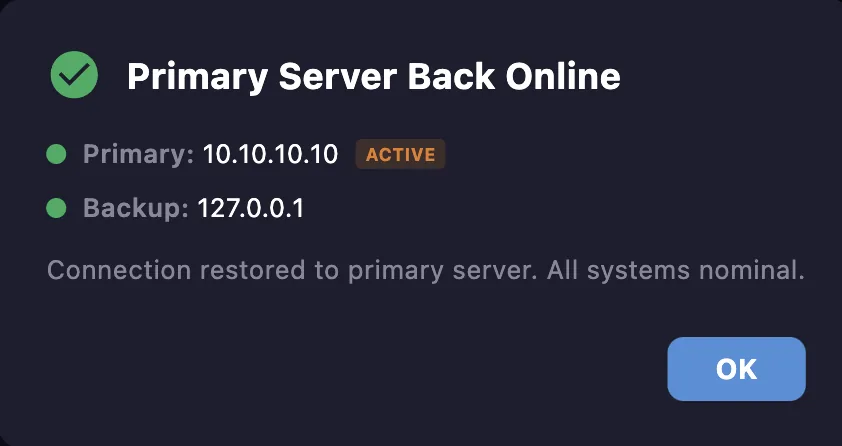
Holophonix Backup Server — the same settings for a second processor. The app switches to it automatically if it loses the primary, and a popup keeps you informed of both servers' state.
-
Lab Monkey — show the cue list and its progress in the Lab Monkey app (originally made for QLab). The gear sets an optional connection password.
- External OSC Control — let external software control the remote's cues over OSC. The gear sets the connection port. See External OSC control for the full detail.
Status
Once connected, the Status panel shows the Holophonix's state:
- Connection and Target (IP)
- Hardware and Version
- I/O — number of inputs and outputs
- Sample rate and buffer size
- Project and Preset
Detected channels
The Detected Channels list shows every channel found on the Holophonix, grouped by type (Tracks, Stereo, Direct To Master, Bus, LFE, Monitoring, Master and outputs).
Losing the connection
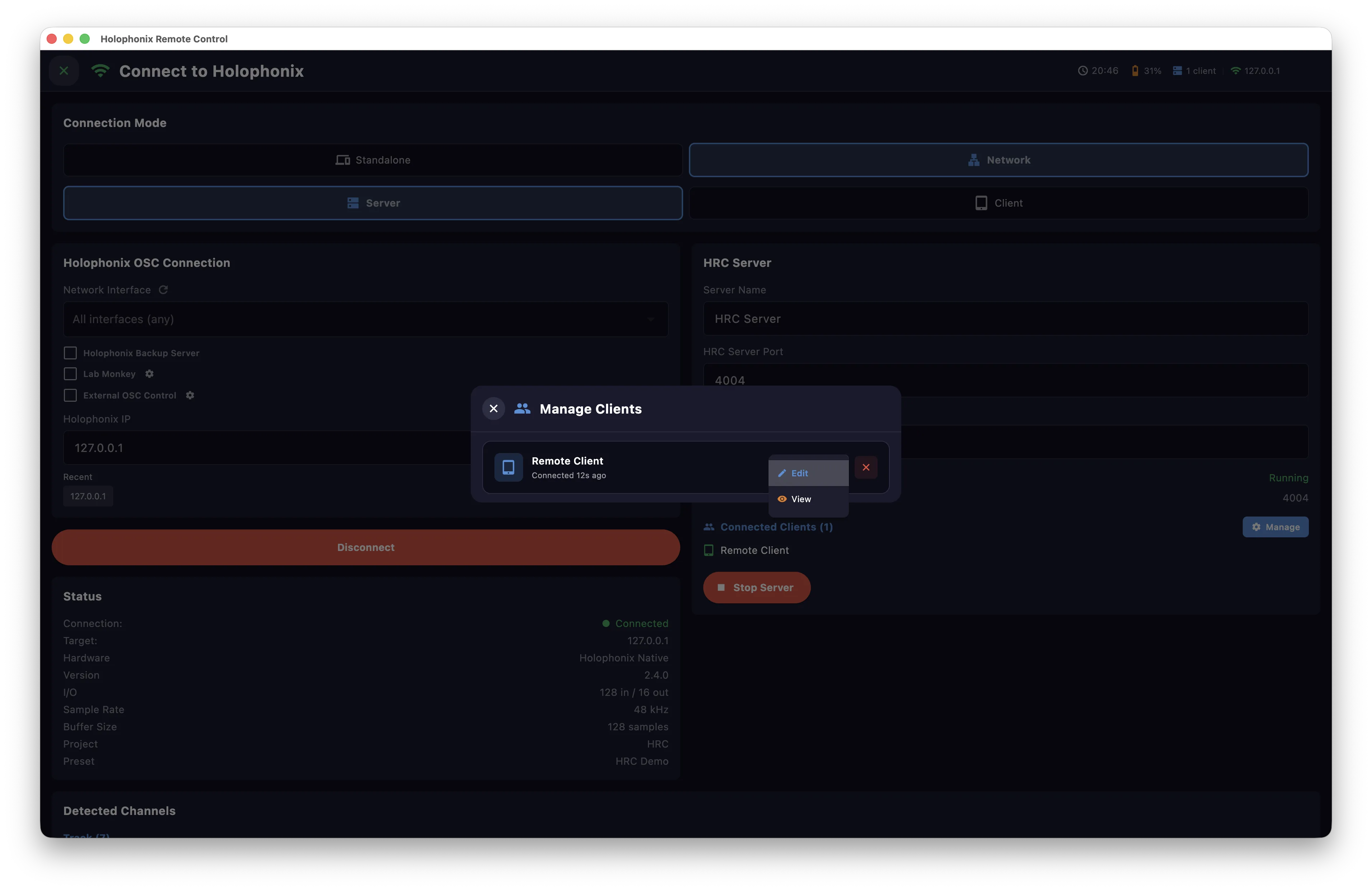
If the link to your Holophonix drops, the app signals it clearly: the status bar turns red, a popup appears (closing on its own when the link returns), and a red border frames the app for as long as you are disconnected.
Most importantly, the show keeps running. Your channels stay loaded and the cue list, Custom MIDI and Custom OSC keep firing — so you can keep sending cues and positions to a backup (such as a console output) and keep your show going, with QLab and the rest carrying on.